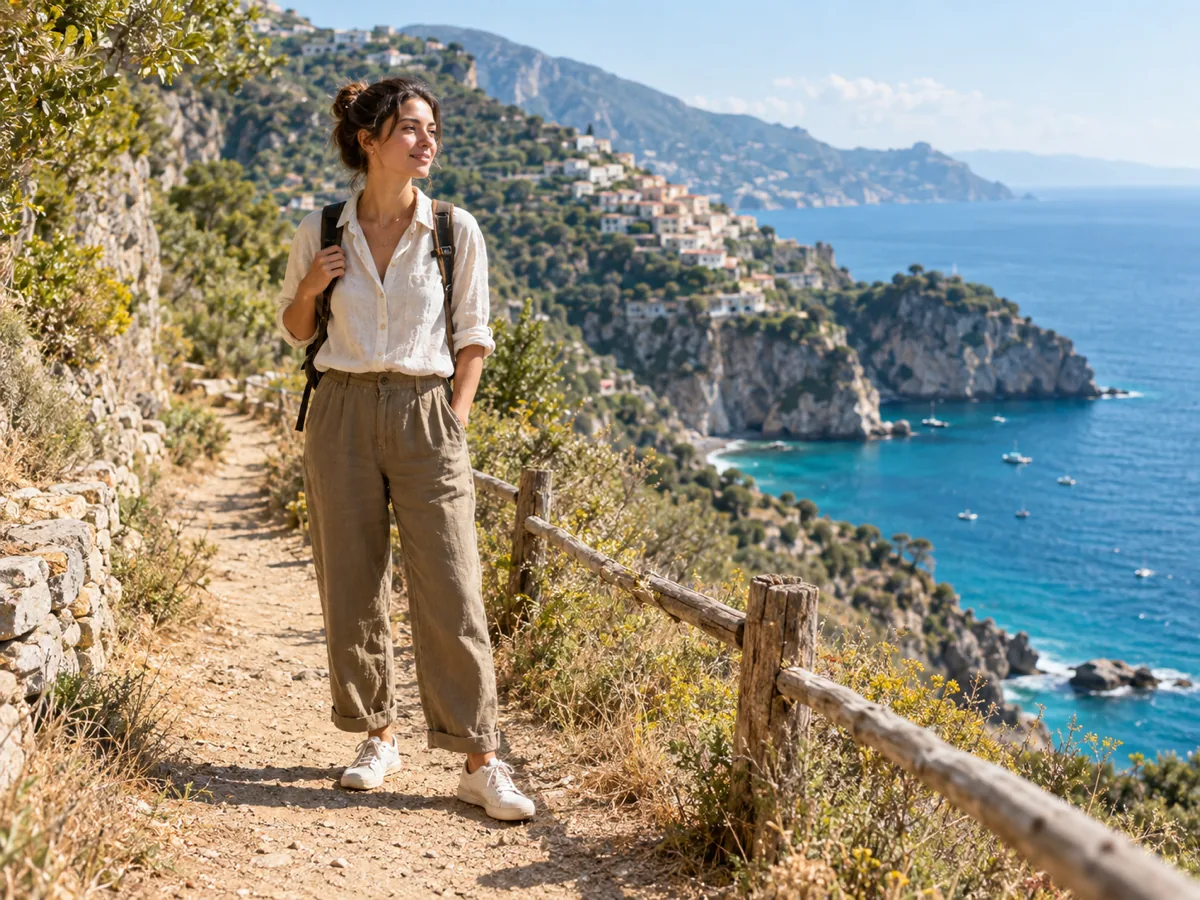
Portrait in a new scene
Keep the subject from one photo and borrow the environment, light, and mood from another for a believable composite.
Upload two images, choose how they should come together, and generate one coherent result with matched lighting, perspective, and color.
Your combined image appears here
Upload two images, pick a combine mode, and describe the result you want. The finished image renders in this panel.
Finished combine examples
The same two-image workflow supports portraits with new backgrounds, products in lifestyle rooms, and clean side-by-side comparisons. Each example ends in one downloadable image.
Keep the subject from one photo and borrow the environment, light, and mood from another for a believable composite.

Pair a catalog product shot with an interior reference so the item sits in a real-looking setting with matched reflections.
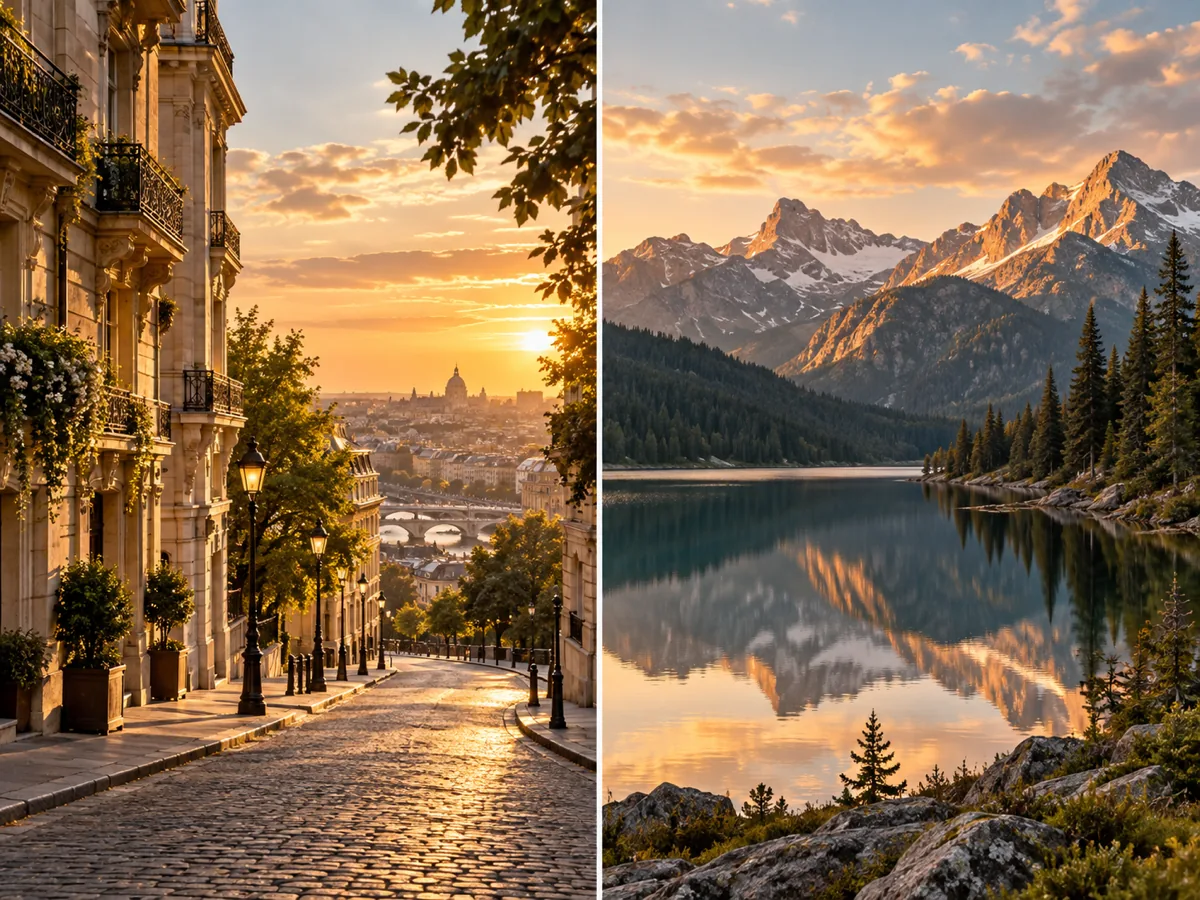
Join two images into one balanced frame with matched scale and a consistent grade for comparisons and posts.
Direct answer
An AI image combiner takes two or more source images and produces a single new image from them. Instead of cutting and pasting, it reads both references and rebuilds one scene with shared lighting, perspective, scale, and color.
Most image generators are built for one prompt or one reference. A combiner is built for the moment two images already exist and need to become one: a portrait plus a background, a product plus a room, or two photos that should sit side by side in one frame.
The result is only useful if the seam disappears. Review light direction, contact shadows, color temperature, scale, edges, and any text on the subject before you publish, because small mismatches are what make a composite look fake.
Start from the two images you already have, then choose the combine mode that matches the result you need.
Blend both references into one seamless scene, with lighting, perspective, and shadows reconciled into a single photograph.
Keep the main subject from the first image and place it naturally into the environment of the second, with believable contact and reflections.
Join two images into one balanced frame with matched scale, consistent color grading, and a clean divider.
Choose 1K, 2K, or 4K resolution and see the exact credit cost before a single generation runs.
Three steps keep the two sources, the combine mode, and the final result easy to inspect.
Add two JPG, PNG, or WebP files. Image 1 is treated as the main subject or the focus of the blend.
Pick Merge and blend, Subject in scene, or Side-by-side collage, then describe the lighting, mood, or focal point you want.
Create one combined image, check the seam, shadows, and edges, then download the result at the resolution you chose.
Commercial comparison
Choose the workflow by the job you need done. This page is built specifically for turning two existing images into one finished frame.
| Decision | This combiner workflow | General image AI | Manual photo editor |
|---|---|---|---|
| Starting point | Two real images, with image 1 as the main subject | Usually one prompt or a single reference | Layers you cut, mask, and position by hand |
| Seam and lighting | Blends lighting, perspective, scale, and shadows in one pass | Not designed for two-source blending | Matching light and shadow is manual and slow |
| Subject consistency | Keeps the subject identity from the first image | May redraw or restyle the subject | You control it, but every edge is manual work |
| Time to a finished image | One generation from two uploads and a short brief | Multiple attempts and a separate compositing step | Minutes to hours of masking and retouching |
| Best fit | Portraits, products, before-and-after, and comparison posts | Exploring brand-new images from text | Pixel-exact control over an existing layout |
The practical advantage is a repeatable two-image path: upload, choose how the images should combine, review one result, and download. Use a manual editor when you need pixel-level control over every layer.
Answers about inputs, combine modes, output quality, credits, and review checks.
It takes two source images and builds one new image from them. Depending on the mode, it can merge both into a single scene, place the main subject into the second image's environment, or join them into a side-by-side collage.
Image 1 is the main subject or focal point. In Subject in scene mode the subject comes from image 1 and the environment comes from image 2, so upload the subject first and the background second.
Upload two JPG, PNG, or WebP files. Keep each file within the on-page limit and use clear, well-lit references, because blurry or heavily filtered sources make seams and lighting mismatches harder to hide.
Yes. Choose 1K, 2K, or 4K before generating. The page shows the exact credit cost for the selected resolution, and some wide or tall ratios are limited to 1K.
The credit cost depends on the output resolution and is shown before you generate. The workspace displays your balance and the exact cost so nothing runs without a visible price.
Inspect the seam between the two sources, the light direction, contact shadows, reflections, scale, color temperature, and any text or logos on the subject. Download only when the subject and the new surroundings feel like one photograph.
Edit a single reference, remove a background for a clean cutout, or review credit options before your next task.
Upload both sources, choose how they should combine, and create a single image with matched light, scale, and color.