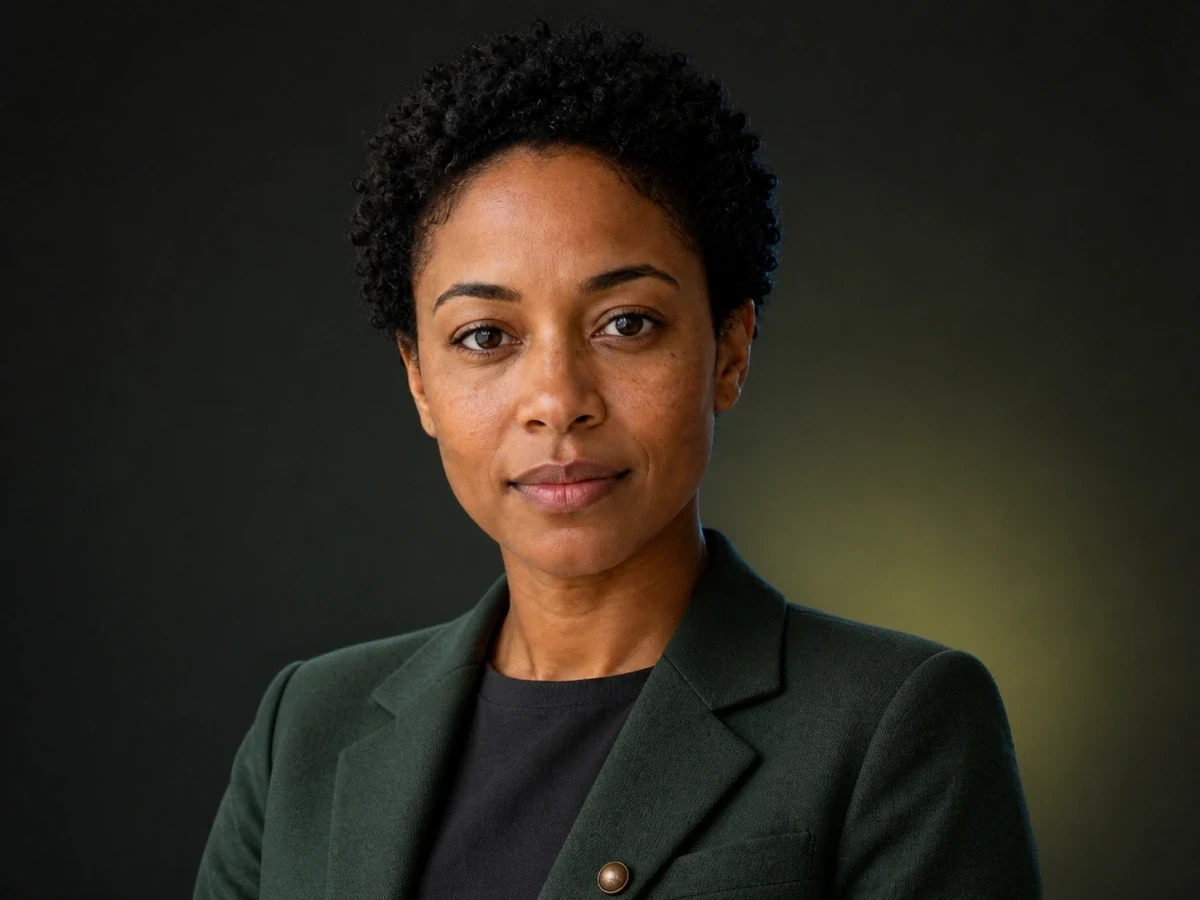
 Portrait / natural
Natural color keeps a portrait believable
The natural direction aims for realistic skin tones, hair, and fabric so a restored portrait still reads like a real photograph rather than a painted illustration.
Image Colorizer adds natural, believable color to black-and-white and faded photographs. Upload one image, choose a color mood, and keep the original beside the result so you can inspect faces, clothing, and background materials before you download.
Awaiting your black-and-white photo
Upload one grayscale or faded photo, choose a color mood, and the colorized result will appear here with a draggable Before / After review.
Colorization is most convincing when the palette follows the subject. These owned sample stills illustrate the three color directions this tool offers: life-like skin and material color for portraits, gentle warmth for heirloom archives, and stronger skies and separation for scenery. Every result you generate is reviewed against your own original scan.
Portrait / naturalThe natural direction aims for realistic skin tones, hair, and fabric so a restored portrait still reads like a real photograph rather than a painted illustration.
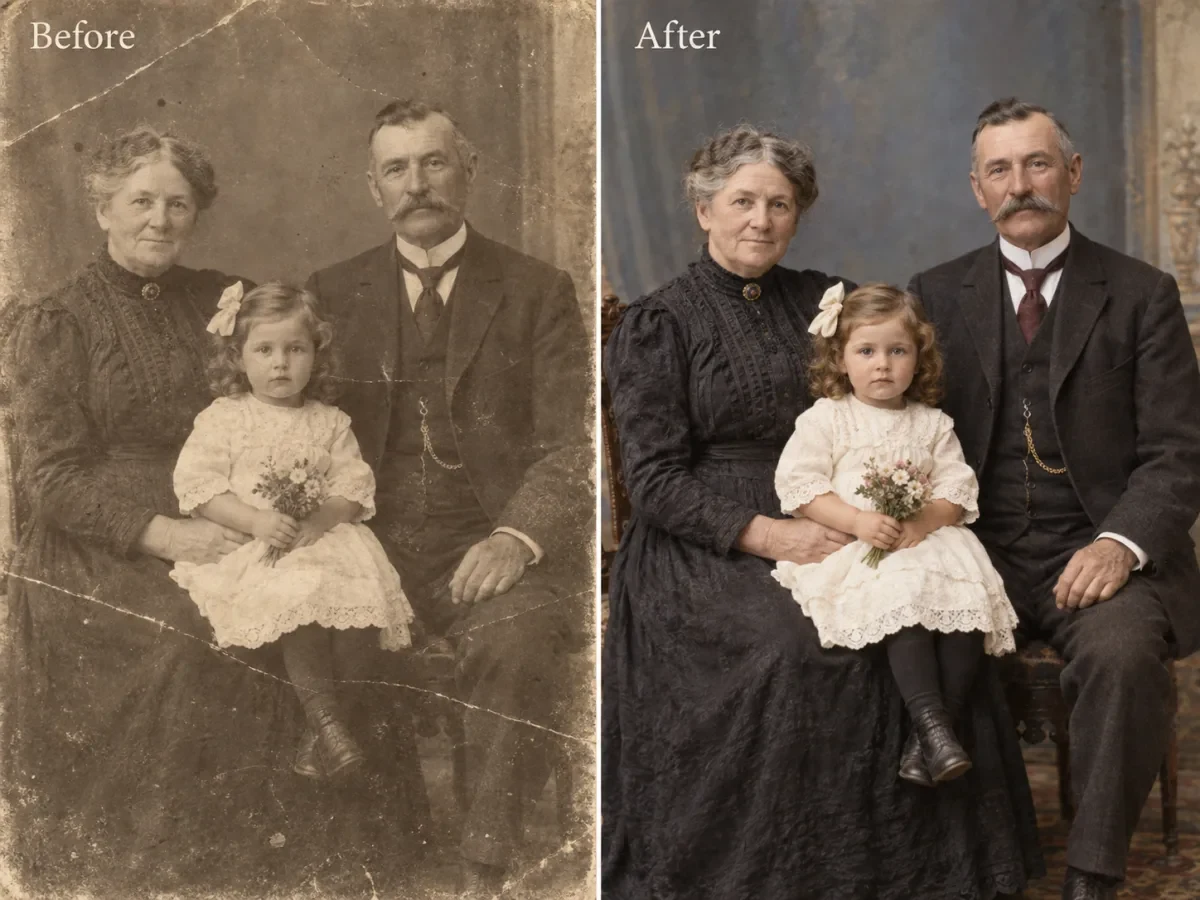 Archive / before & after
This owned before-and-after sample shows the intended archive outcome: believable color returned to a damaged family portrait while the original composition, faces, and detail stay intact.
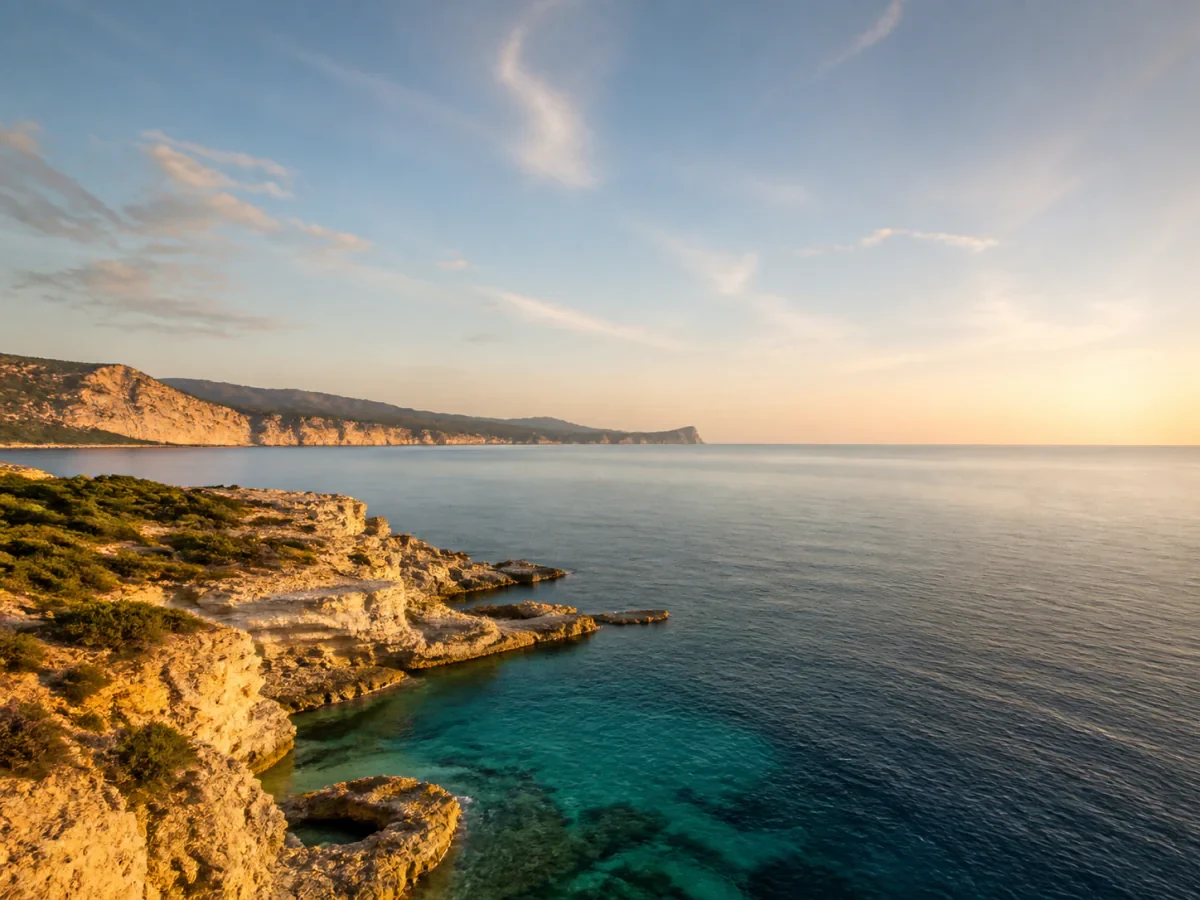 Landscape / vivid
The vivid direction lifts skies, water, and foliage so foreground and background separate clearly, which suits travel prints, posters, and marketing-ready restorations.
AI photo colorization adds realistic color to a black-and-white or faded photograph. It is not a global tint: a useful image model reads the scene, assigns believable skin, clothing, sky, and material colors, and keeps the original detail, grain, and composition intact.
The practical goal is a trustworthy restoration. A good result keeps every face recognisable, preserves the original lighting and shadow structure, and avoids inventing objects, text, or borders that were never in the photo. That is why this page keeps the source image in the same review stage as the colorized output.
Start with the highest-resolution scan you have and a clear subject. Portraits benefit from visible facial features, architecture benefits from straight geometry and consistent light, and damaged prints benefit from repair before or alongside colorization. The color mood changes the palette; it does not repair a blurred or heavily damaged source.
The mood selector is a real generation setting, not a decorative label. Pick the direction that matches how the restored photo should be used.
True-to-life tones with realistic skin, clothing, and environment colors and balanced saturation for documentary and family archives.
Best for portraits, family photos, and archival records.
Richer saturation with clear skies and lively hues for street scenes, landscapes, and marketing-ready restorations.
Best for city scenes, travel photos, and posters.
Soft film warmth with gentle fading and a nostalgic mid-century palette that keeps an heirloom feel.
Best for weddings, formal portraits, and keepsakes.
The page keeps the workflow short enough for a first attempt while exposing the review step that prevents a convincing result from hiding a restoration error.
Add a JPG, PNG, or WebP scan with enough resolution to read faces, fabric, and background materials. One clear source gives the model the best chance of a believable result.
Confirm the thumbnail is the scan you intended to colorize.
Select natural for life-like skin and materials, vivid for punchy skies and street scenes, or vintage for a soft film-warm heirloom look. The selected mood is sent with the generation request.
Choose the mood that matches the final use, not just the strongest saturation.
Drag the Before / After divider across faces, hands, clothing, text, and repeating patterns. Download only when the color looks believable and the original detail is still intact.
Keep the original scan as the reference for any later restoration or print work.
The comparison below describes the public workflow each product presents, not a benchmark of hidden model quality. The useful distinction is where the decision and inspection happen: this page puts color-mood selection and Before / After review in the same focused tool.
| Criterion | Nano Banana Pro | VanceAI | Palette.fm |
|---|---|---|---|
| Primary workflow | Upload one black-and-white photo → choose a color mood → compare → download | Colorize-oriented workflow inside a broader photo enhancement suite | Colorization-first flow with palette and caption-style presets |
| Color control before generation | Three explicit color moods (natural, vivid, vintage) exposed before generation | Colorization options presented within a wider enhancement menu | Palette controls and preset suggestions in the editor surface |
| Review before export | Built-in Before / After divider keeps the original scan and the colorized result together | Preview and download within the enhancement workflow | Inline preview with download from the editor surface |
| Pricing transparency | The page shows the credit cost per colorization before you generate | Credit or subscription pricing disclosed across its products | Free preview with paid high-resolution export |
| Best fit | Users who want a focused, mood-led colorization with an explicit check step | Users who also want a full enhancement and upscaling suite | Users who prefer palette presets and quick experimental previews |
Choose Nano Banana Pro when the colorized photo itself is the deliverable and you want the mood choice, source comparison, and download decision in one compact workspace. For every tool, inspect faces, hands, text, and repeating patterns before relying on a restored photo commercially.
Clear expectations make the first colorization more useful and make the review step faster.
Use the highest-resolution JPG, PNG, or WebP scan you have, with good tonal range and a clear subject. Portraits should show facial features, architecture should have visible edges, and heavily damaged prints are best repaired first.
Yes. The tool exposes natural, vivid, and vintage color moods as generation choices. Natural keeps tones life-like, vivid raises saturation and sky color, and vintage adds soft film warmth for heirloom photos.
The request asks the image model to preserve the subject identity, composition, pose, textures, and important details, and to avoid adding text, objects, or borders. Because the output is an AI interpretation, compare it with the original before relying on a face or exact detail.
Yes. After generation, the result stage keeps the uploaded black-and-white scan under a draggable Before / After divider so you can inspect skin, clothing, and background color before downloading it.
The dedicated page is set to one output and displays 30 credits per colorization at 1K before you generate. Uploading and choosing a mood do not consume generation credits; credits are reserved when the authenticated generation request is accepted.
Review the current Nano Banana Pro Terms of Service and make sure you have rights to the source photograph. Always inspect the output for accidental text, invented objects, or likeness issues before publishing or selling it.
Start with the scan that matters, choose a color mood, and let the Before / After stage decide whether the result is ready to keep.