Uncrop
Adds a new canvas area and generates plausible visual content to fill it. Use it to change composition or aspect ratio without cutting the subject.
Upload one image, choose a wider or taller frame, and generate coherent new context around it. Add scene direction when you need precise composition; the working tool starts immediately below.
Your expanded image appears here
Upload a source image, select a wider or taller frame, then generate a context-aware extension.
AI uncrop extends a picture past the edges that currently exist. A model studies subjects, depth, lighting, textures, perspective, and visual patterns in the source. It then synthesizes new surroundings for the larger canvas. The practical outcome is a new composition, not simply a bigger copy of the same rectangle.
This is useful because one image rarely fits every destination. A tightly framed product photo may need horizontal room for a landing page headline. A vertical portrait may need to become a 16:9 video thumbnail. A square campaign visual may need a taller story version. Traditional cropping solves the opposite problem by removing pixels; uncropping generates the context you did not capture.
Our workflow uses the GPT Image 2 image-to-image model for generative reframing. It is suitable for context-aware expansion and prompt-guided composition. It is not a strict mask-based outpainting tool, so the model can reinterpret parts of the uploaded image. If exact pixel preservation or a manually painted mask is mandatory, use a layer-based editor with deterministic masking instead.
Start with the destination, then let the new frame define the generation. Four deliberate choices produce more usable results than a vague “make it bigger” prompt.
You can also compare supported AI models or review credit pricing before generating.
Use a JPG up to 1 MP, or PNG/WebP up to 4 MP, under 10 MB. Images with readable lighting and background cues give the model more evidence to continue.
Select 16:9 for wide screens, 9:16 for stories, 4:5 for social feeds, 21:9 for banners, or another supported frame.
Guidance is optional. Add it when you need a particular environment, subject placement, negative space, season, light, or camera direction.
Choose 1K, 2K, or 4K where the ratio supports it. Check seams, repeated objects, hands, text, reflections, and horizon continuity before use.
A useful expansion preserves the scene logic while changing where the eye can travel. These examples show the kinds of context an AI can continue around a strong central subject.
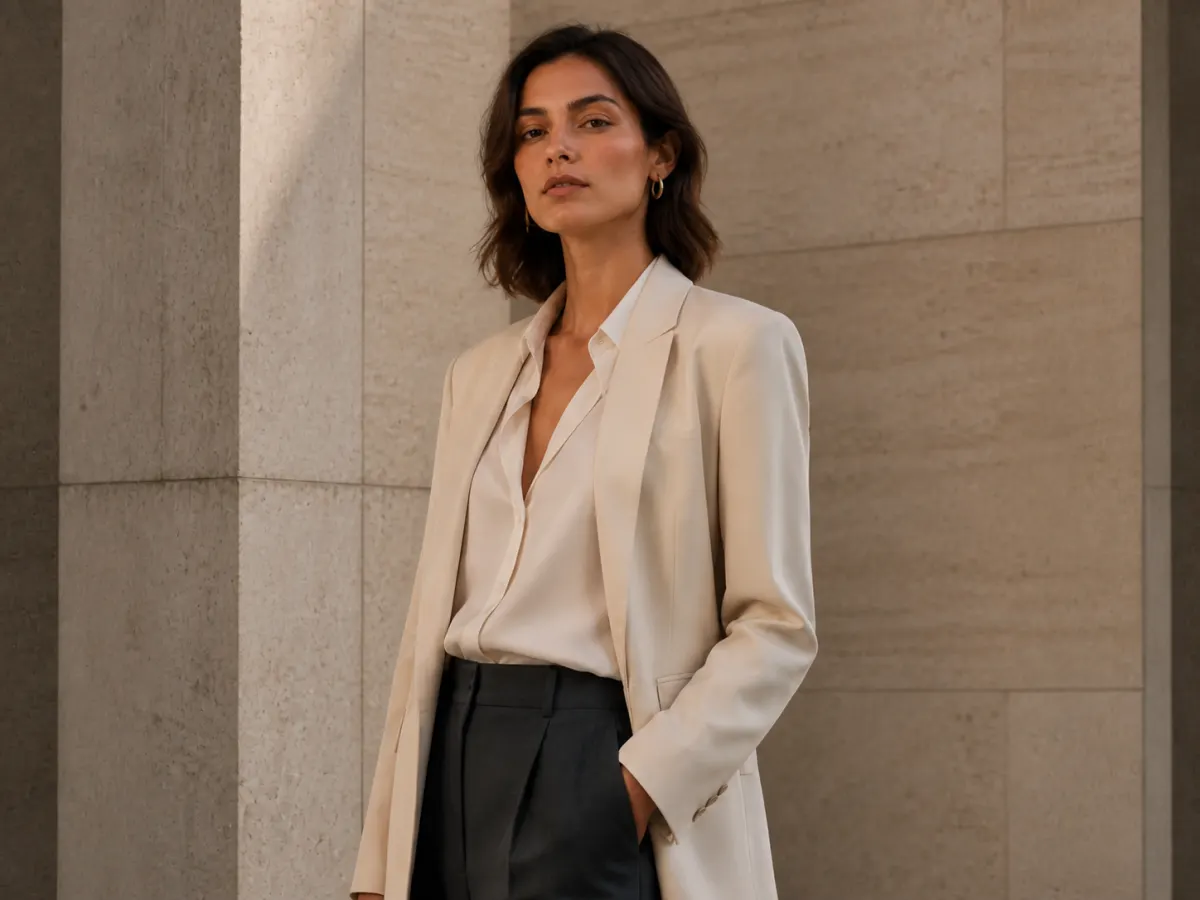 Tight-frame demo
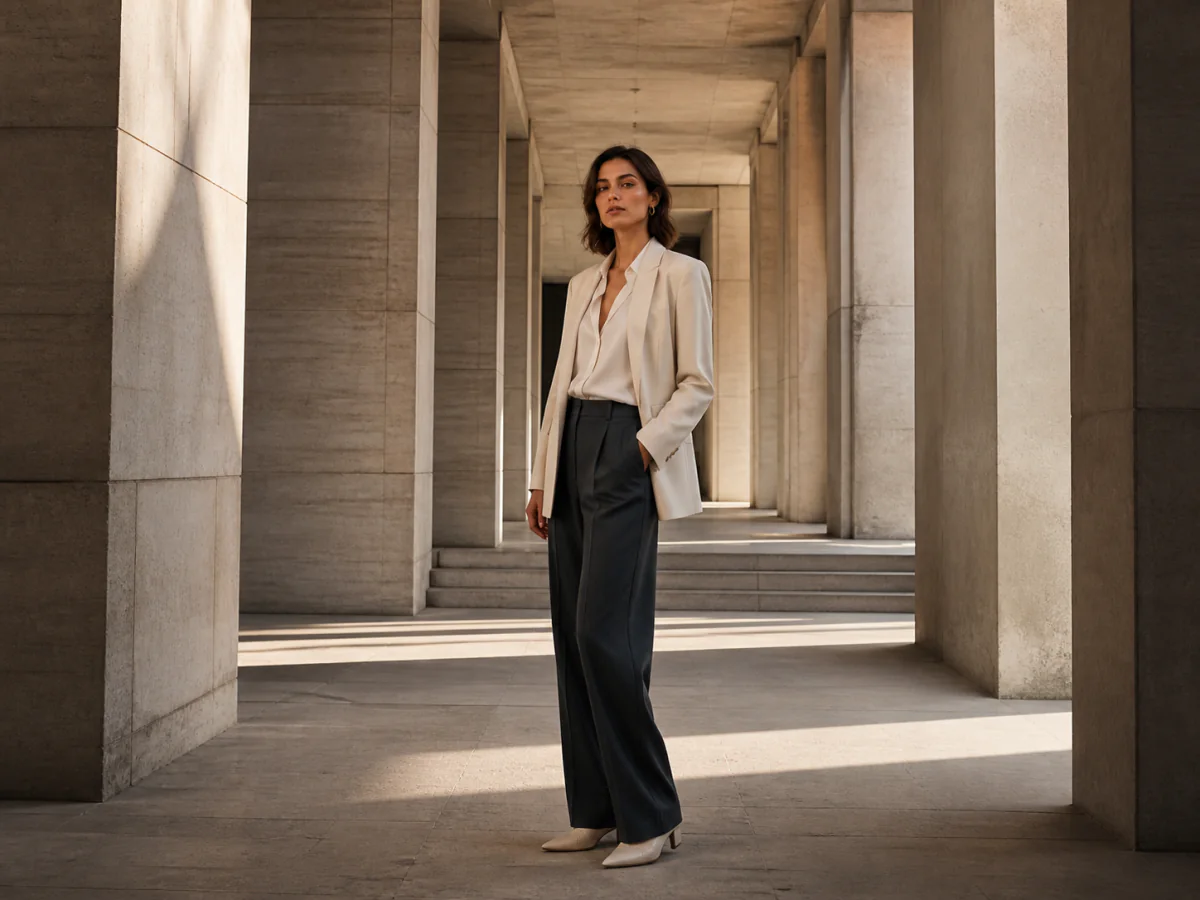 Expanded-frame demo
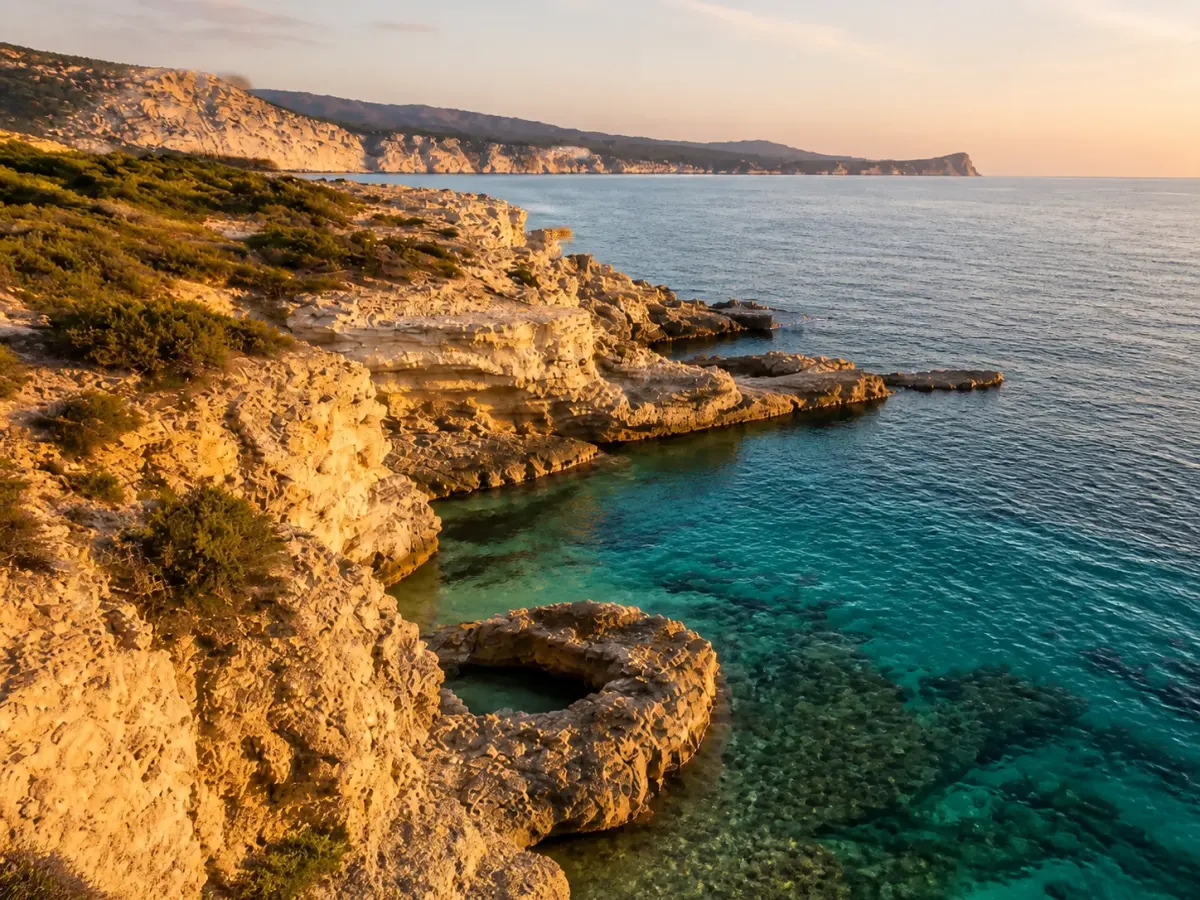 Tight-frame demo
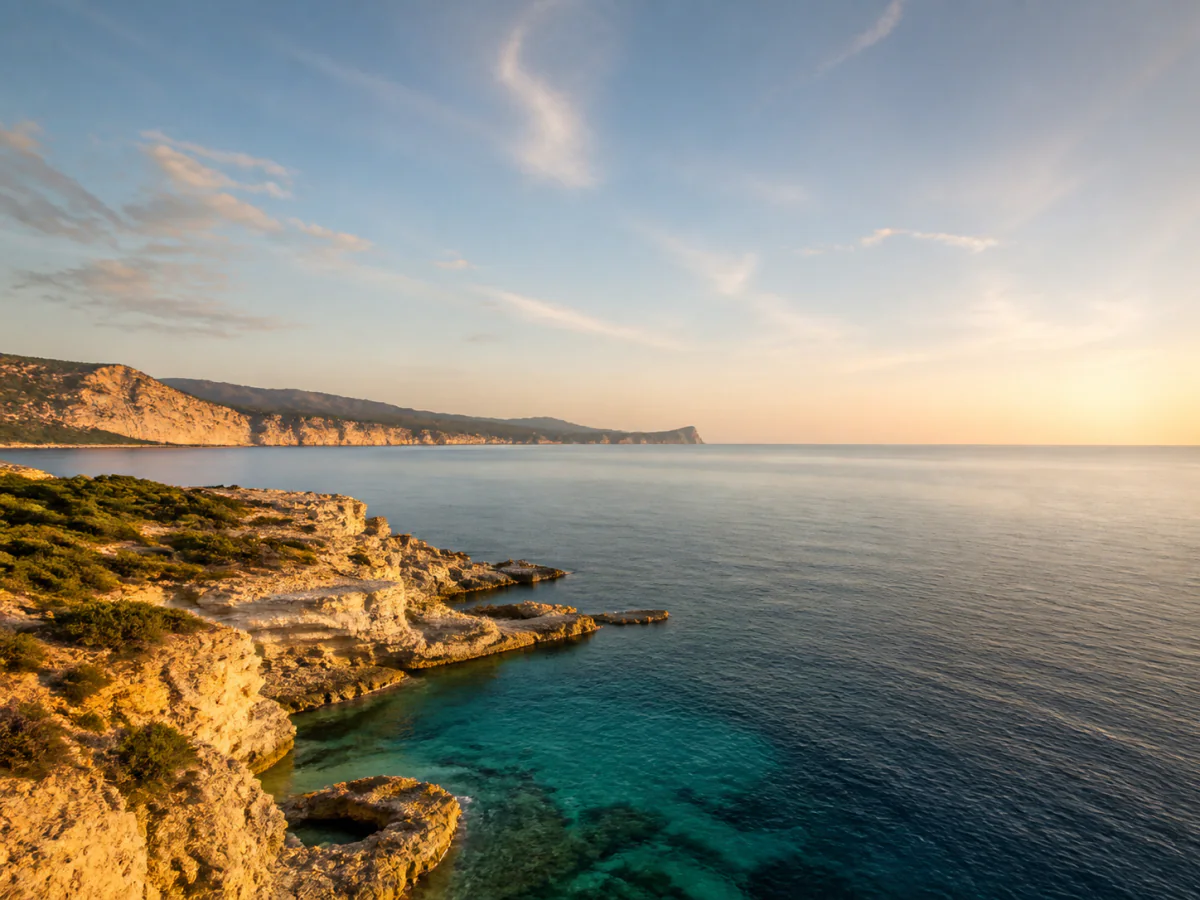 Expanded-frame demo
All pairs use a shared 4:3 presentation so you can compare composition at a consistent display size. These are paired editorial composition demos, not recorded product runs, customer submissions, or pixel-preservation claims.
Adds a new canvas area and generates plausible visual content to fill it. Use it to change composition or aspect ratio without cutting the subject.
Removes the outer area. Use it when the existing image already contains everything you need and a tighter composition is acceptable.
Changes pixel dimensions. Unless the ratio stays identical, resizing can stretch or compress the content.
Increases resolution and reconstructs detail while preserving the frame. It does not create meaningful space beyond the edges.
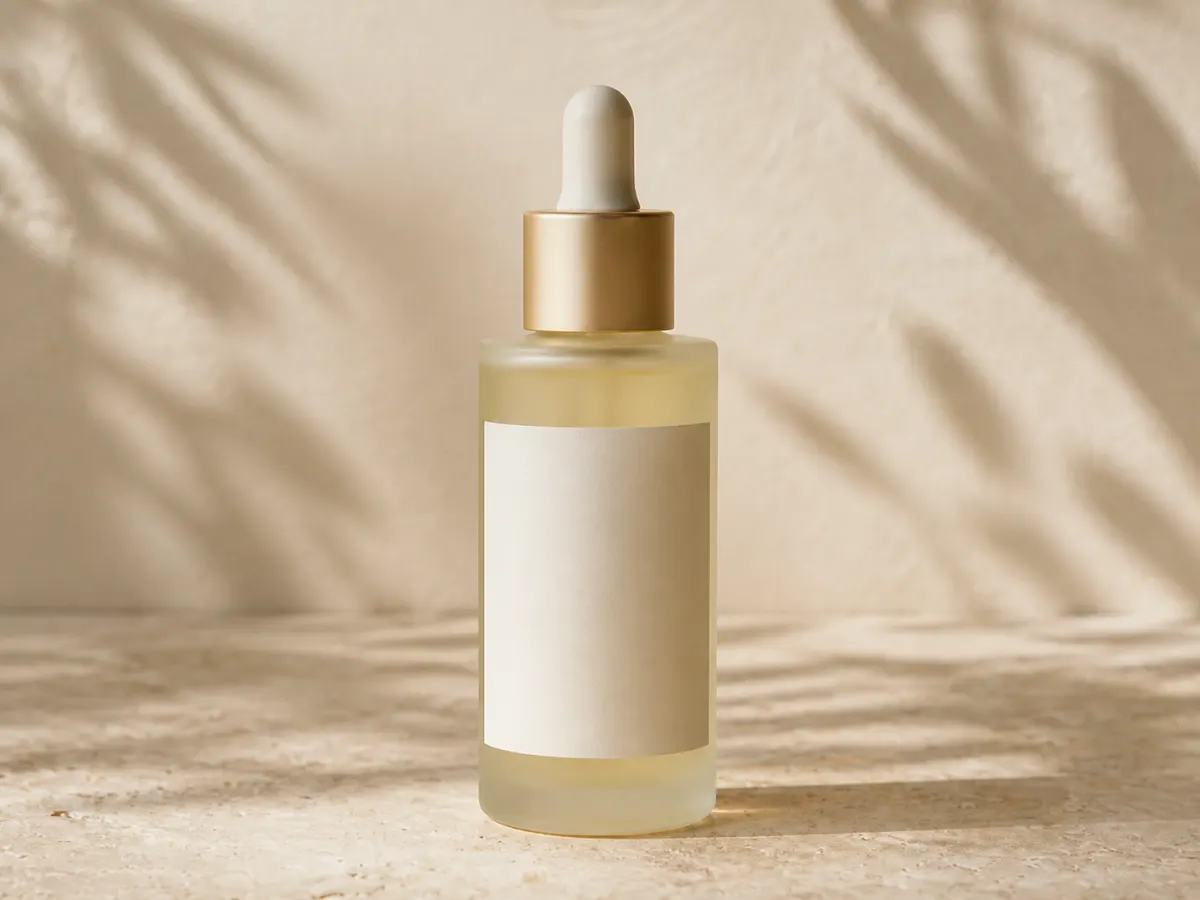 Tight-frame demo
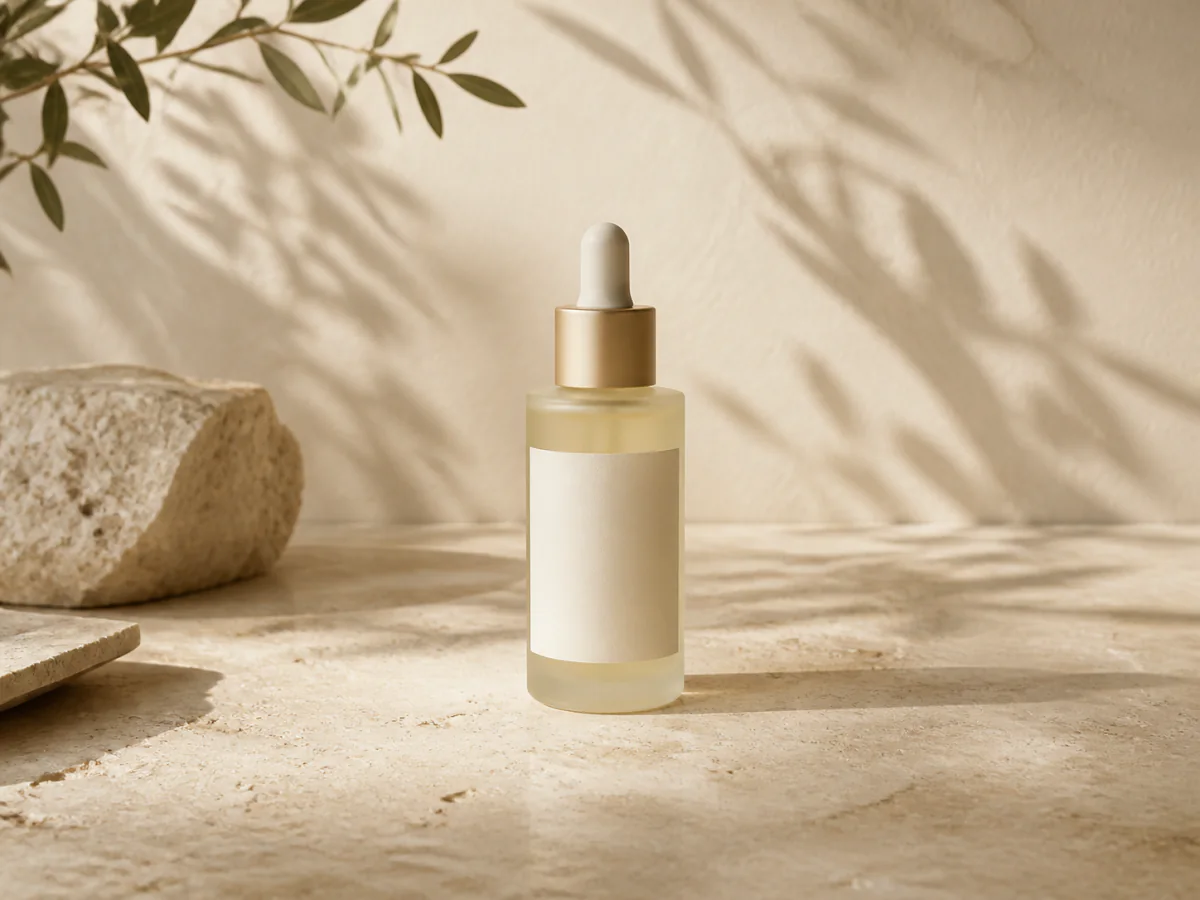 Expanded-frame demo
Uncrop is most valuable when the extra space has a job. Ask for calm negative space beside a product, a continued landscape behind a subject, or a taller environment around a portrait. A destination-led prompt gives the model a compositional constraint instead of an open-ended invitation to invent.
Scenes with repeatable textures and clear geometry—sky, water, walls, floors, foliage, studio backdrops, roads, and simple room interiors—usually provide strong continuation cues. Subjects that are fully visible also reduce ambiguity at the new boundary.
A prompt can establish intent without micromanaging every pixel: “continue the marble surface and soft window light, leave clean space on the left for a headline” is more actionable than “improve this image.”
Choose a mask-based editor when every original pixel must remain untouched, when a client requires a precise protected region, or when you need to paint the expansion boundary by hand. GPT Image 2 performs a generative edit and can alter fine source details.
Use conventional compositing for regulated product packaging, legal text, scientific evidence, identity documents, or exact architecture. AI can hallucinate logos, lettering, anatomy, reflections, and repeated structures; always review material outputs at full resolution.
The best uncrop tool depends on source limits, canvas control, output controls, and the rest of your workflow. This table uses claims visible on each vendor’s uncrop page; it does not infer unverified speed, quality scores, or subscription pricing.
| Decision point | Nano Banana 2 | Pixelcut | Pollo AI |
|---|---|---|---|
| Workflow on the uncrop page | Upload → choose ratio/resolution → optional guidance → generate | Upload → preset or drag the canvas → generate | Upload → choose an aspect ratio → generate |
| Input shown by the vendor | One JPG up to 1 MP, or PNG/WebP up to 4 MP; 10 MB max | JPG, PNG, or HEIC; up to 100 MB and 8000×8000 | Image upload with common ratio presets |
| Output controls verified | 16 ratios at 1K; compatible ratios at 2K and 4K | Preset sizes plus a draggable canvas | Aspect-ratio selection |
| Best fit | Prompt-guided reframing with explicit resolution control | Large source files and hands-on canvas placement | Users already working inside Pollo’s wider AI media suite |
Verify current details directly on Pixelcut’s uncrop page and Pollo AI’s uncrop page.
Short answers to the decisions that matter before you expand an image with AI.
Uncrop means extending the canvas beyond an image’s current boundaries and generating plausible new content for the added area. It is also called AI image expansion, generative expand, or outpainting.
No. A generative uncrop workflow creates new pixels around the frame instead of stretching every existing pixel. Because the whole result is AI-generated, however, small details inside the source may still be reinterpreted.
Yes. Upload the portrait, choose a landscape ratio such as 16:9 or 21:9, and describe what should continue into the new side areas. Leave enough visual context for the model to infer the scene.
This tool accepts JPG images up to 1 MP, or PNG/WebP images up to 4 MP, with a 10 MB file-size maximum. One source image is used per generation so the expansion stays focused on a single composition.
You can request 1K, 2K, or 4K output. Some extreme or uncommon ratios are available only at 1K because GPT Image 2 does not support every ratio at higher resolutions.
No. If you leave it empty, the tool asks the model to continue the reference naturally. Guidance helps when you need a specific background, subject position, lighting direction, or empty space for copy.