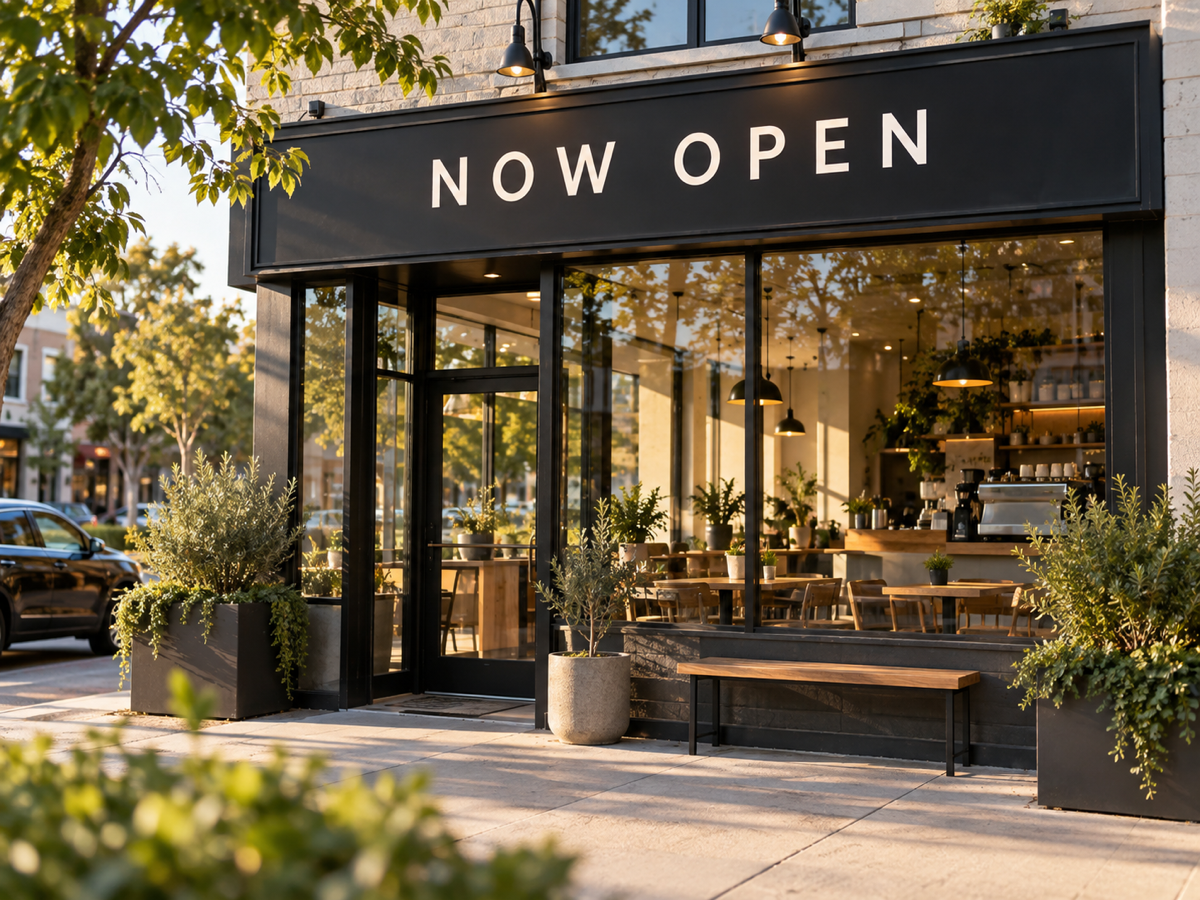
 Storefront / sign
Replace a storefront sign message
A storefront photo can carry a new message while the building, lettering angle, and daylight stay in place, which is useful for openings, seasonal hours, and local campaigns.
Edit text in image without rebuilding the whole design. Upload one photo, type the text you want to change and the new wording, then keep the original font, layout, and perspective so the edit looks native to the scene.
Leave "Text to change" empty to add new text. The edit keeps the rest of the image unchanged.
Awaiting your source image
Upload one image that contains text, describe the wording change, and the edited result will appear here with a draggable Before / After review.
Editing text in an image is a precision job: the surrounding pixels should look untouched. These studies show the intended decision — change the message, keep the sign, label, or ad that carries it.
Storefront / signA storefront photo can carry a new message while the building, lettering angle, and daylight stay in place, which is useful for openings, seasonal hours, and local campaigns.
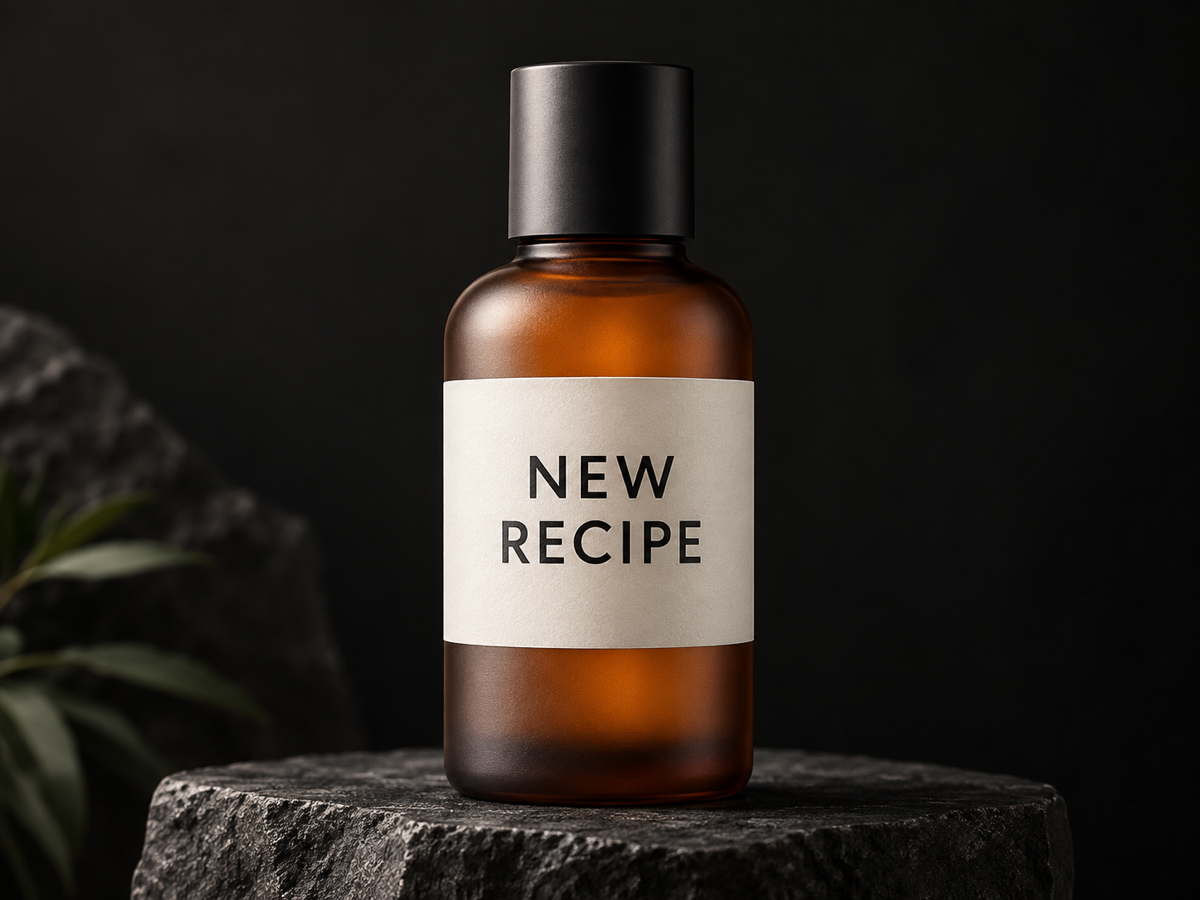 Product / packaging
A packaging shot can be refreshed with new label wording while the bottle, material, reflections, and product color remain the reference the customer recognizes.
 Social / ad
A campaign image can be re-lettered for a new offer without rebuilding the layout, so one visual becomes several on-message variants for a launch.
Editing text in an image means changing the words that are already baked into a photo, or adding new words to it, while keeping the surrounding design intact. A useful edit keeps the original font weight, color, alignment, and perspective so the new wording does not look pasted on.
The hard part is not writing the new sentence. It is removing the old text cleanly, rebuilding the surface behind it, and matching the type so the change survives a close look. A flattened photo has no text layer to select, which is why manual editors often need cloning and type tools to fake the repair.
This page uses an AI image edit that receives the source photo and a structured text instruction. You describe the existing text and the replacement, or leave the existing text blank to add new words. The request asks the model to change only the text and preserve everything else: composition, lighting, materials, logos, and any wording you did not ask to touch.
Each method edits a different layer. Pick the one that matches the job instead of using a heavier workflow to compensate for the wrong approach.
| Method | What changes | Source text | Best use | Main risk |
|---|---|---|---|---|
| AI text replacement | The model repaints the old wording and blends new type into the scene | You describe the existing text and the replacement | Flat photos, signs, labels, and ads with no text layer | Long or decorative type can still drift in letter shape |
| Manual retouching | You erase or clone over the old text, then set new type by hand | You select or paint the area yourself | Small edits on a simple, low-detail background | Clone seams, mismatched fonts, and slow repeat work |
| Template overlay | New text sits on top of the image instead of replacing anything | The original text is usually left in place | Design layouts where an overlay is the intended style | Two competing messages and text that ignores perspective |
No image model can promise a perfect result on every source. Decorative lettering, extreme angles, heavy compression, and very small type deserve a close review before the edit is published or used commercially.
The sequence is short because the important decision is visible in the tool. Start with a readable source, describe the exact change, then compare before you download.
Add a JPG, PNG, or WebP image where the text is readable. A sharper source with even lighting gives the model a better chance of matching the original letter shapes.
Confirm the thumbnail is the image you want to change, not a similar shot.
Type the existing text in "Text to change" and the replacement in "New text". Leave the existing text empty to add new wording instead. Choose a typography direction so the new type either matches the source or follows a cleaner look.
Check spelling and capitalization before generating; the model renders exactly what you type.
Drag the Before / After divider across the edited words, the surface behind them, logos, and nearby detail. Download only when the new text sits in the scene and the rest of the image still matches the source.
Zoom in on letter edges and the repaired surface before using the image.
The right edit depends on what must stay recognizable. Keep the scene and change the message when the photo itself is the asset.
Does a product photo need a new label wording, size, or flavor without a reshoot?
Try this: Replace only the label text and keep the packaging, material, and lighting untouched. This preserves the product the customer already recognizes.
ReviewVerify brand names, regulated claims, ingredient text, and small print against the approved artwork before publishing.
Can one strong visual be re-lettered for a new offer, price, or season?
Try this: Update the headline or call to action and keep the composition. Typography direction can make the new wording match the campaign or stand out more.
ReviewCheck that the new claim is accurate, the call to action is legible at thumbnail size, and no old wording remains.
Is the text in a storefront, menu board, or personal photo no longer accurate?
Try this: Replace the specific wording while keeping the sign, board, and background in place. This avoids retaking a photo that is otherwise usable.
ReviewLook closely at perspective and shadows so the new text follows the same plane as the original surface.
These tools solve overlapping text-editing jobs in different ways. The comparison focuses on the decision that matters here: how much setup is required to change wording that is already part of a photo. Competitor names are included for clarity; this page does not send users to competitor sites.
| Decision point | Nano Banana Pro | Adobe Photoshop | Canva |
|---|---|---|---|
| Primary workflow | Upload one image, describe the text change, choose a typography direction, compare, and download. | A professional raster editor where text repair and new type are built from layers, selections, and manual tools. | A browser design editor where text is usually added as an overlay on top of an image rather than replaced inside it. |
| Editing text baked into a photo | The edit is designed for flattened photos with no text layer: the model repaints the old wording and blends in the new type. | Capable but manual. You remove the old text with clone or generative tools, then match the font, color, and perspective yourself. | Its Grab Text feature can pull text out of an uploaded photo for editing, which is useful when the words are clear and mostly upright. |
| Setup and skill | No design software, layers, or font matching. The form asks for the old and new wording and a look. | Requires editing knowledge and time; the result depends on the operator matching the original type. | Fast for overlays, templates, and clean horizontal text, but control is limited when the original wording is small, angled, or styled. |
| Review before export | A Before / After divider keeps the source and edited image together for inspection. | Review happens on the canvas through layer visibility and history. | Review happens on the design canvas before download. |
| Cost behavior on this page | 20 site credits per 1K edit. Changing the form fields and re-running creates a new task. | A paid subscription with its own plan and export terms; editing time is the main cost. | A freemium design product with its own plan and export rules. |
Choose Nano Banana Pro when the text is already part of the photo and you want the change without a manual retouch workflow. Choose a professional raster editor when you need full manual control, or a design editor when the text is a new overlay on top of the image.
The tool validates these boundaries before a paid task starts. They describe the implemented page, not a promise that every photo will produce a perfect result.
One 1K edit costs 20 site credits. Re-running after a field change starts a new paid task.
Your image is checked for format, size, and dimensions, then stored under your account. Only the account that uploaded an image can use it for an edit.
Your wording is turned into the edit instruction and sent with the image to the image model. When the result is ready it is saved to your account so you can compare it with the original before downloading.
If an edit fails, the reserved credits are returned to your balance by the same billing system that handles every other generation on the site.
Credits are reserved when the edit task is accepted. Changing the form fields or the comparison divider does not create a new task until you generate again.
Clear expectations make the first edit more useful and the review step faster.
You can upload an image and prepare the text change without paying. The generated edit costs 20 site credits at 1K, and the balance is checked before the task starts.
The "Match original" typography direction asks the model to reuse the source font weight, color, spacing, alignment, and perspective. Results are an AI interpretation, so compare decorative or unusual fonts with the original before publishing.
Upload the flattened photo, type the wording you want to replace, and type the new wording. The model repaints the old text and blends the new type into the scene instead of requiring a separate text layer.
Yes. Leave the "Text to change" field empty and enter only the new wording. The request then adds the text rather than replacing an existing phrase.
The instruction asks the model to change only the text and preserve the composition, lighting, colors, materials, logos, and any wording that was not requested to change. Always compare the result with the source, because generative edits can still introduce small differences.
The tool accepts JPG, PNG, and WebP images. Use the sharpest source you have, because small, blurred, or heavily compressed text is harder to match accurately.
Start with the photo that carries the message, describe the change in plain words, and let the Before / After stage decide whether the edit is ready to keep.