Flux 3: Turn Creative Direction into Images
Write a visual brief or guide an edit with a reference, then shape the result in the Flux 3 workspace.
Your Flux 3 result will appear here
Set a direction on the left, then generate when the brief is ready.
Write a prompt to begin with Flux 3. Sign in and use site credits when you are ready to run a generation and save the result.
Ways to Create with Flux 3
Use Flux 3 to explore distinct commercial and editorial image directions from one focused workspace.

Product Campaign Visuals
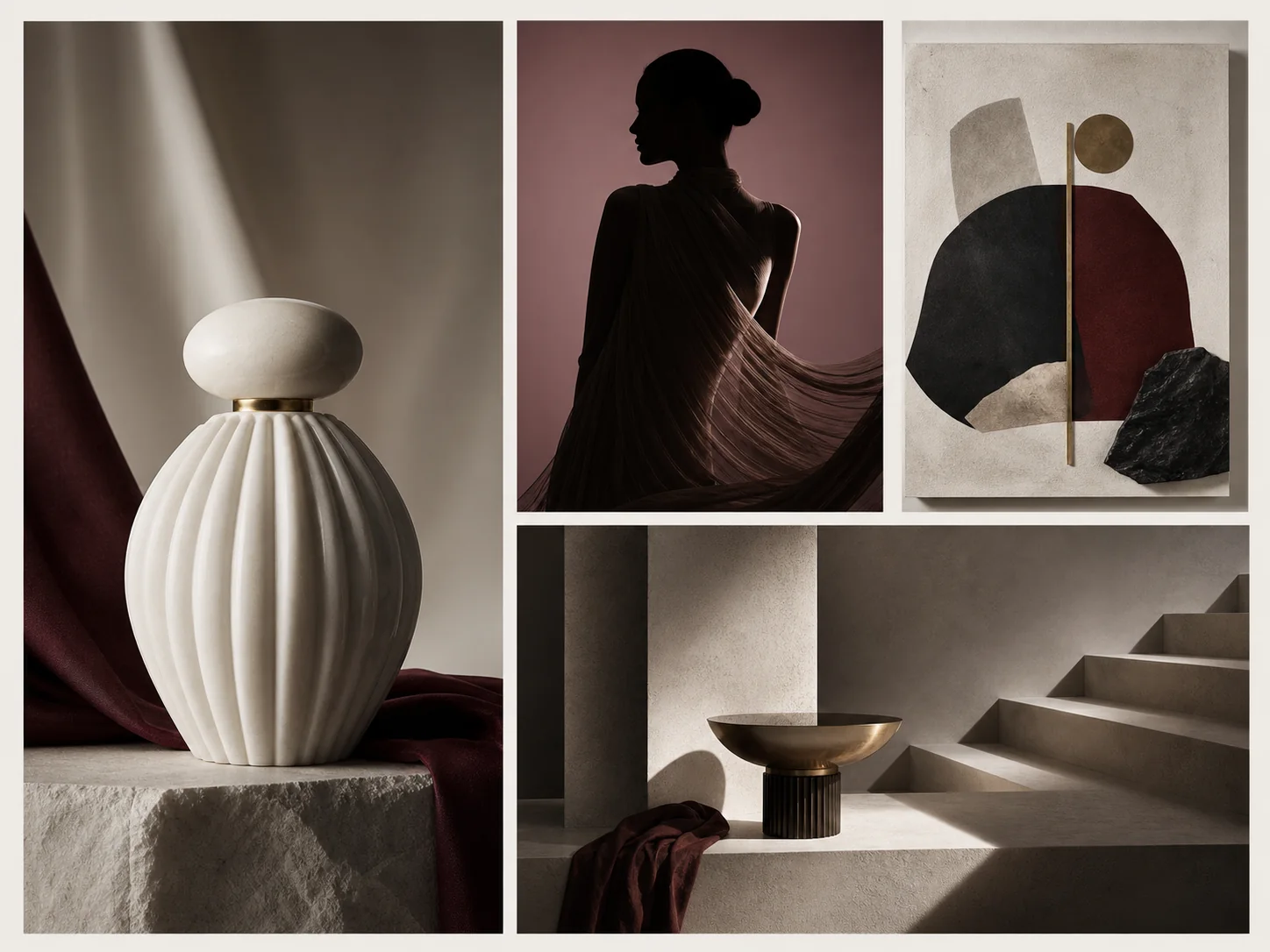
Place a hero product in a considered set with intentional materials, light, color, and negative space for campaign layouts.
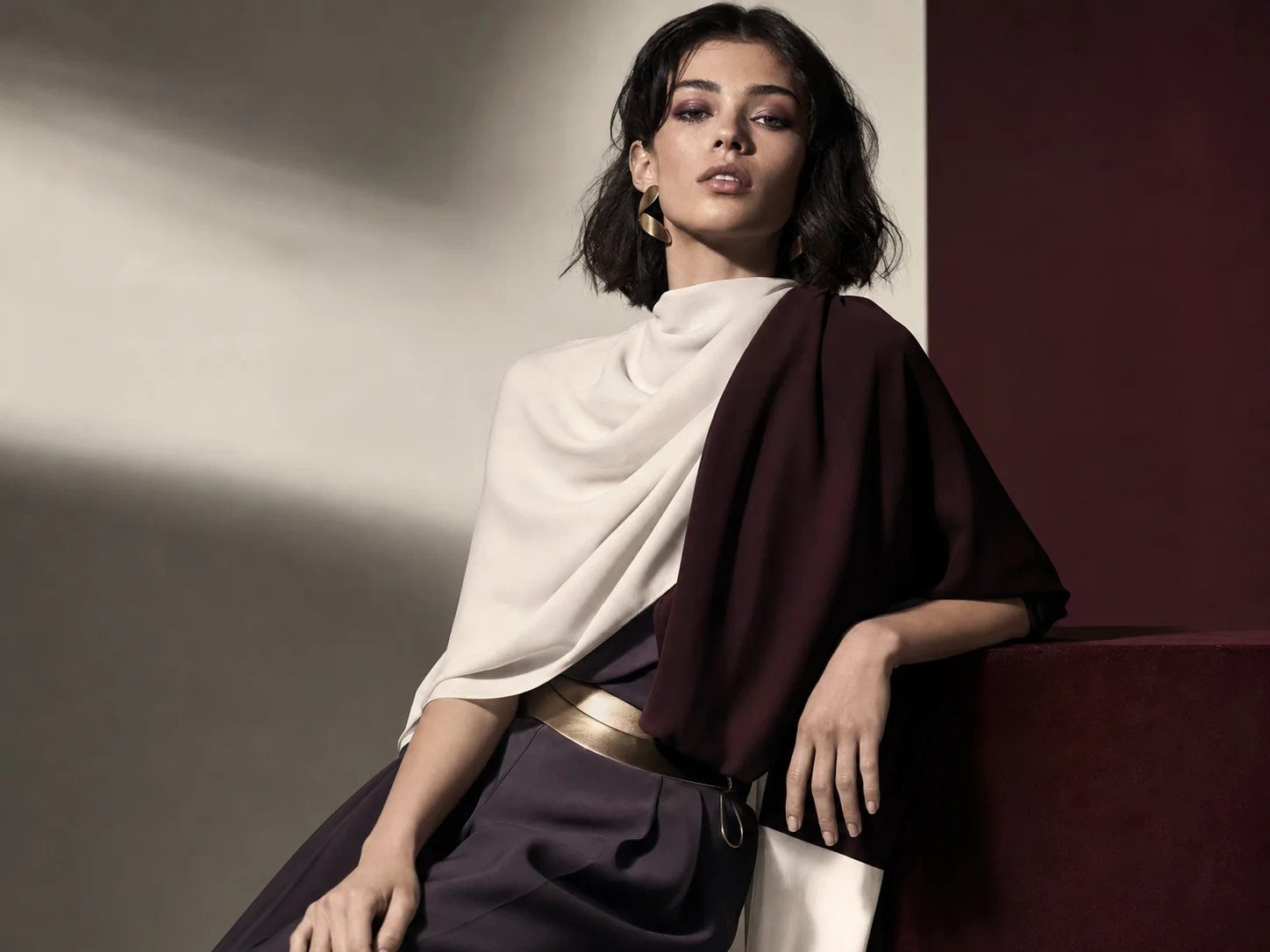
Editorial Portraits
Develop portrait concepts through wardrobe, location, lens language, lighting, and a clearly defined editorial mood.
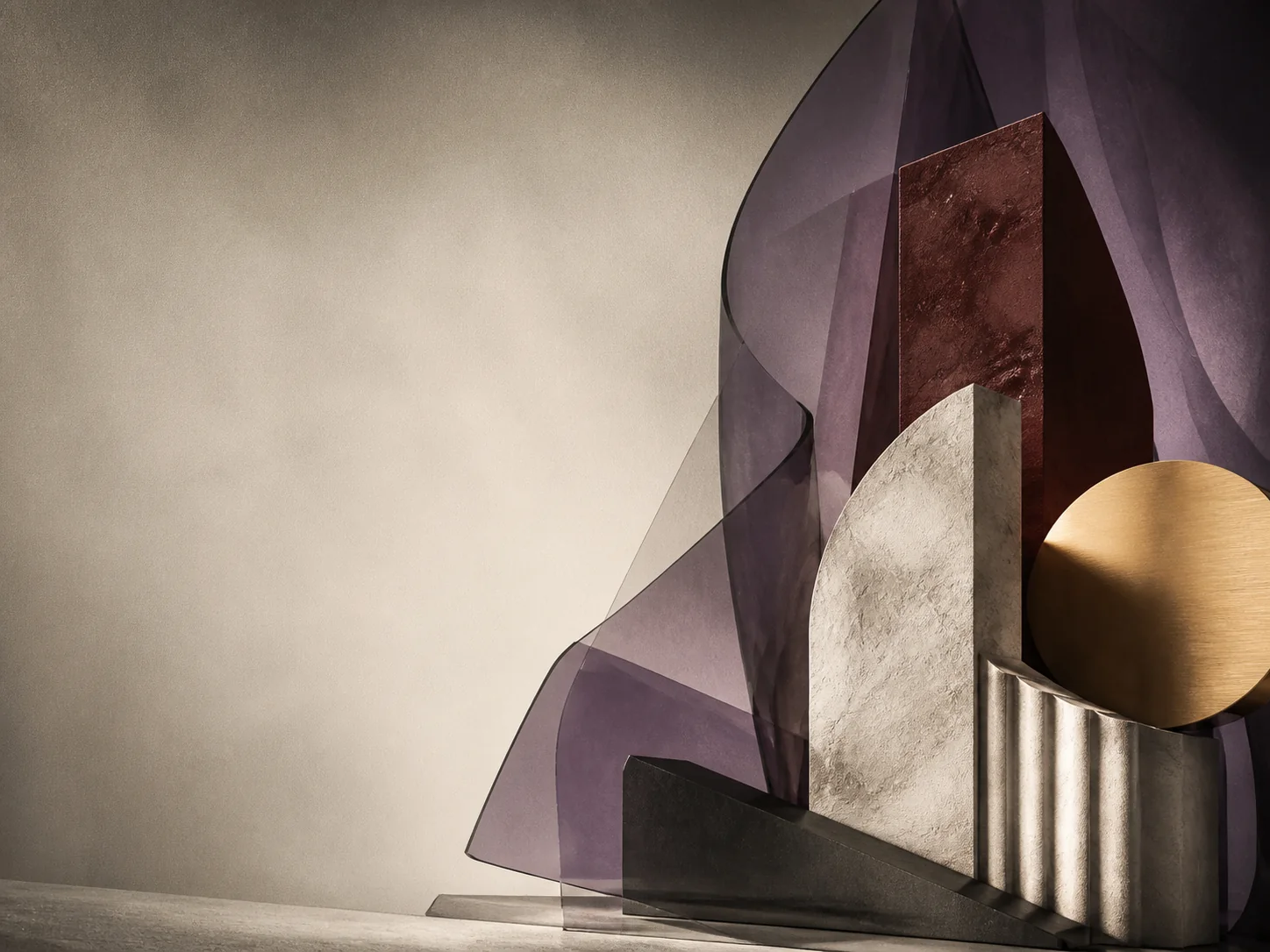
Poster Concepts
Explore bold focal points, graphic framing, color systems, and headline placement for culture or event posters.
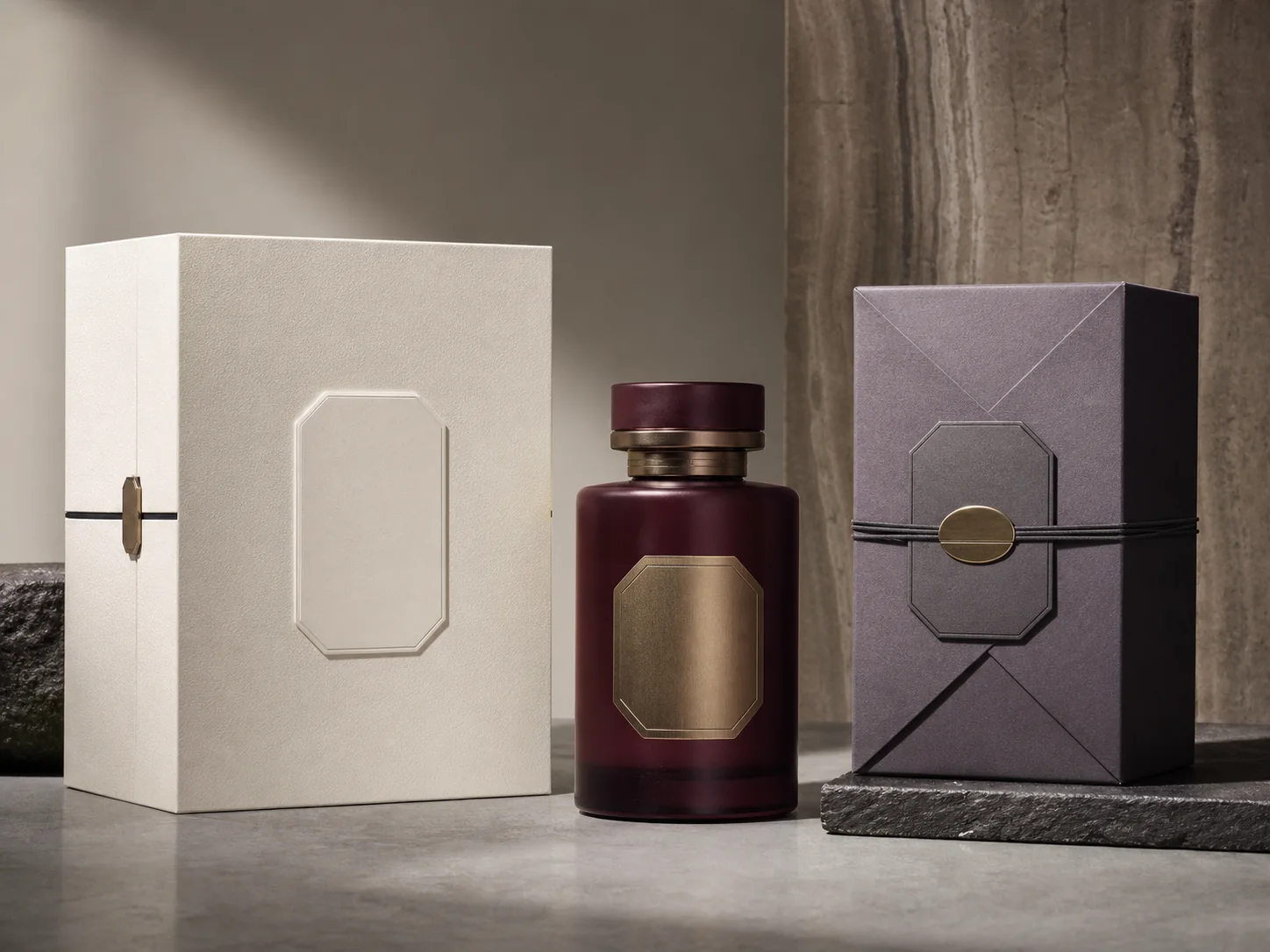
Packaging Mockups
Visualize packaging forms, surface finishes, labels, and shelf context before moving a direction into production design.
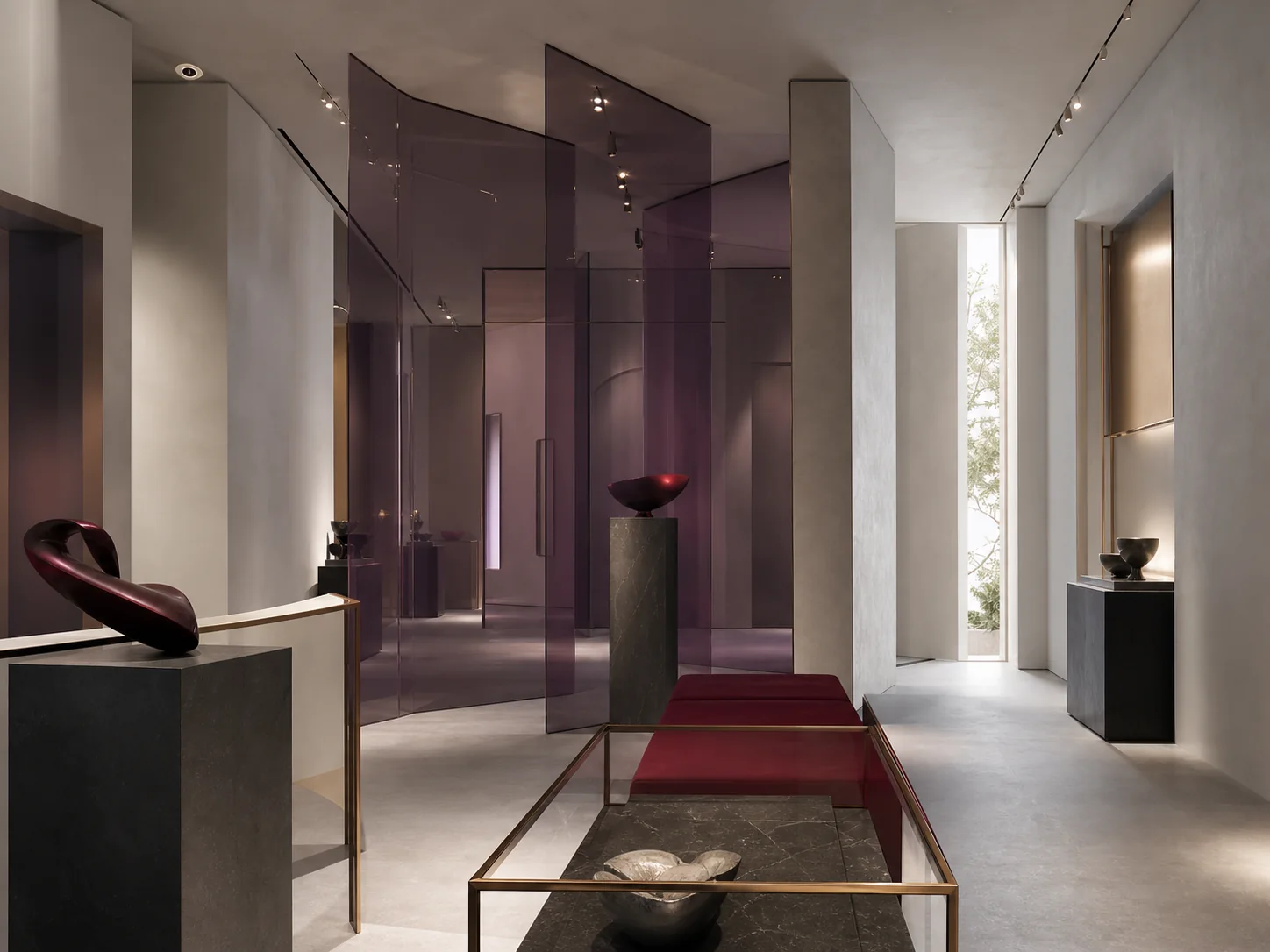
Environment Concepts
Define an interior, retail space, exhibition, or cinematic location through architecture, materials, scale, and atmosphere.
Social Creative Sets
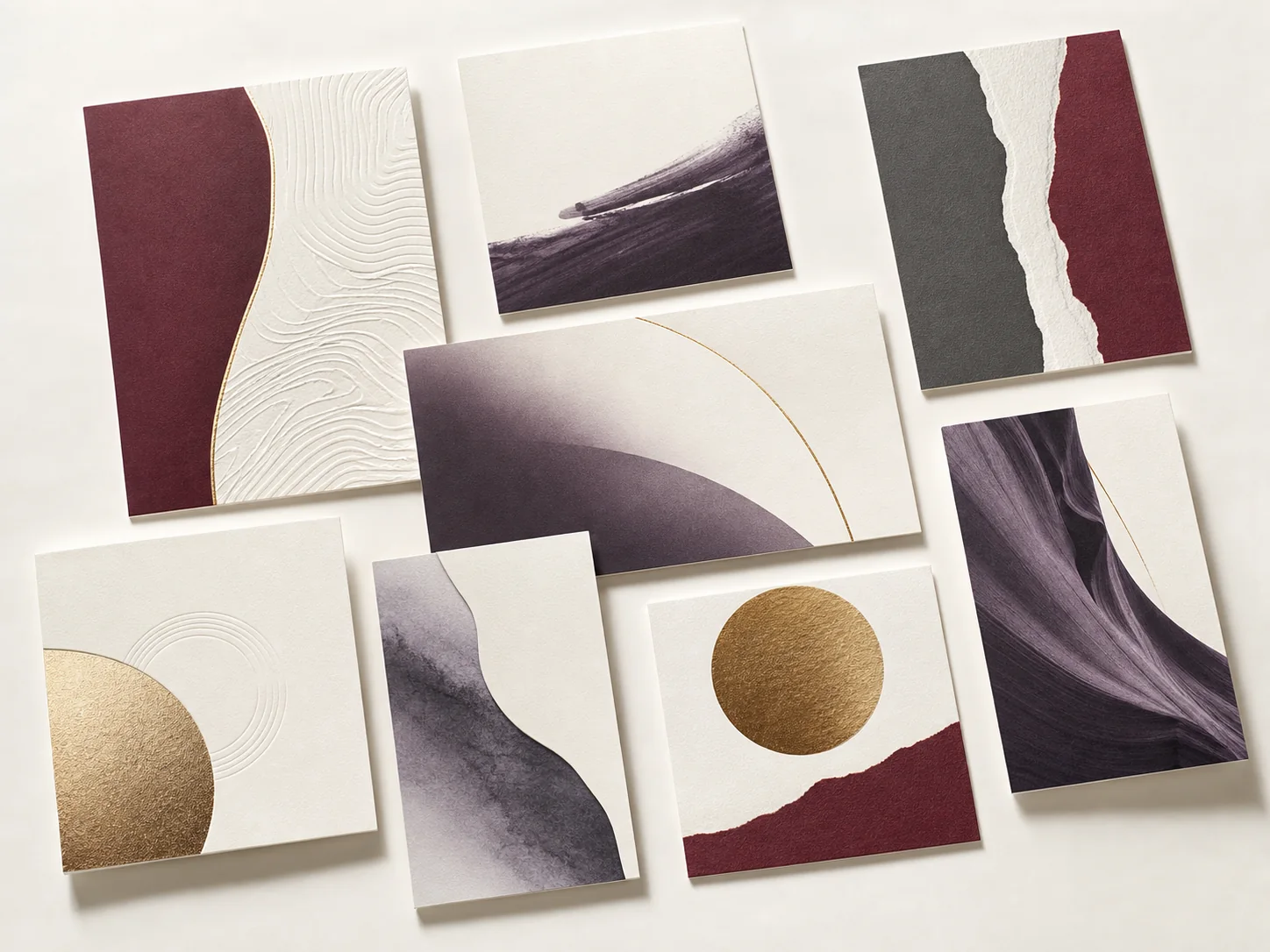
Build a family of visual directions for launches, announcements, and recurring content across multiple placements.
What Is Flux 3?
Flux 3 is the image creation experience on this page. It gives you one place to describe a visual, choose a frame, add references when needed, and review the generated result without building a multi-tool setup.
The workflow is useful when an idea is easier to express as a creative brief than as a finished design. You can define the subject, environment, color direction, materials, camera language, and layout in ordinary words, then refine the prompt around what matters most.
Flux 3 also supports a reference-led path for edits. Upload an image, explain the intended change, and keep the prompt focused on the elements to preserve or transform. Each completed generation uses site credits.
Flux 3 Creative Features
A compact set of controls for moving from a visual brief to a usable image direction.
Detailed Prompt Direction
Build a brief around subject, setting, palette, lighting, lens language, materials, and mood so the intended composition is clear.
Reference-Guided Changes
Bring in an existing image when the task starts with a product, character, photograph, or layout that needs a new treatment.
Composition Control
Choose square, portrait, landscape, widescreen, or a custom frame to shape the visual around its final placement.
Text-Aware Briefs
Include the exact headline or label in your prompt and describe its hierarchy, position, and relationship to the image.
Iterative Refinement
Revise one creative variable at a time, such as camera angle, background, color balance, or styling, to keep feedback focused.
Unified Workspace
Keep prompting, reference uploads, format choices, generation, review, and download in one browser-based flow.
How to Use Flux 3
Shape a clear visual brief, generate a draft, and refine it in four practical steps.
Choose a starting point
Create from text for a new concept, or switch to reference editing when an existing image should guide the result.
Write the visual brief
Describe the subject first, then add composition, environment, materials, lighting, color, mood, and required text.
Set the frame
Select an aspect ratio that matches the destination, whether the image is for a product page, poster, feed, story, or banner.
Generate and refine
Run the generation with site credits, review the image, and adjust the prompt around the most important change for the next version.
Flux 3 Workflow vs. Manual Image Building
Choose a prompt-led route when the brief is clear but the finished visual still needs exploration.
| Creative task | Flux 3 workflow | Manual workflow |
|---|---|---|
| Starting a concept | Begin with a written visual direction | Assemble assets and a canvas before testing the idea |
| Trying compositions | Describe a new frame, angle, or focal point | Rebuild the layout and source replacement material |
| Using references | Pair an uploaded image with clear change instructions | Mask, composite, retouch, and color-match by hand |
| Changing formats | Choose a frame for the intended placement | Recompose elements separately for each canvas |
| Reviewing direction | Evaluate a generated visual against the brief | Review work after multiple production steps |
| Iterating | Update the prompt around one targeted change | Repeat editing across layers and source assets |
Why Use the Flux 3 Workspace
Keep creative exploration grounded in a clear brief and a repeatable review loop.
Brief-first thinking
Start with the idea and its visual rules, so each generation has a clear purpose and a useful basis for review.
Two practical entry points
Move from a blank prompt or begin with an uploaded reference without leaving the same workspace.
Focused iteration
Change one variable at a time and compare the result against the original goal instead of widening the brief.
Output-aware framing
Select the image shape early so composition decisions reflect the channel where the visual will be used.
Flux 3 FAQ
Practical answers for creating and refining images in the Flux 3 workspace.
Build Your Next Visual with Flux 3
Bring a clear brief, choose the right frame, and turn the direction into an image from the workspace above.