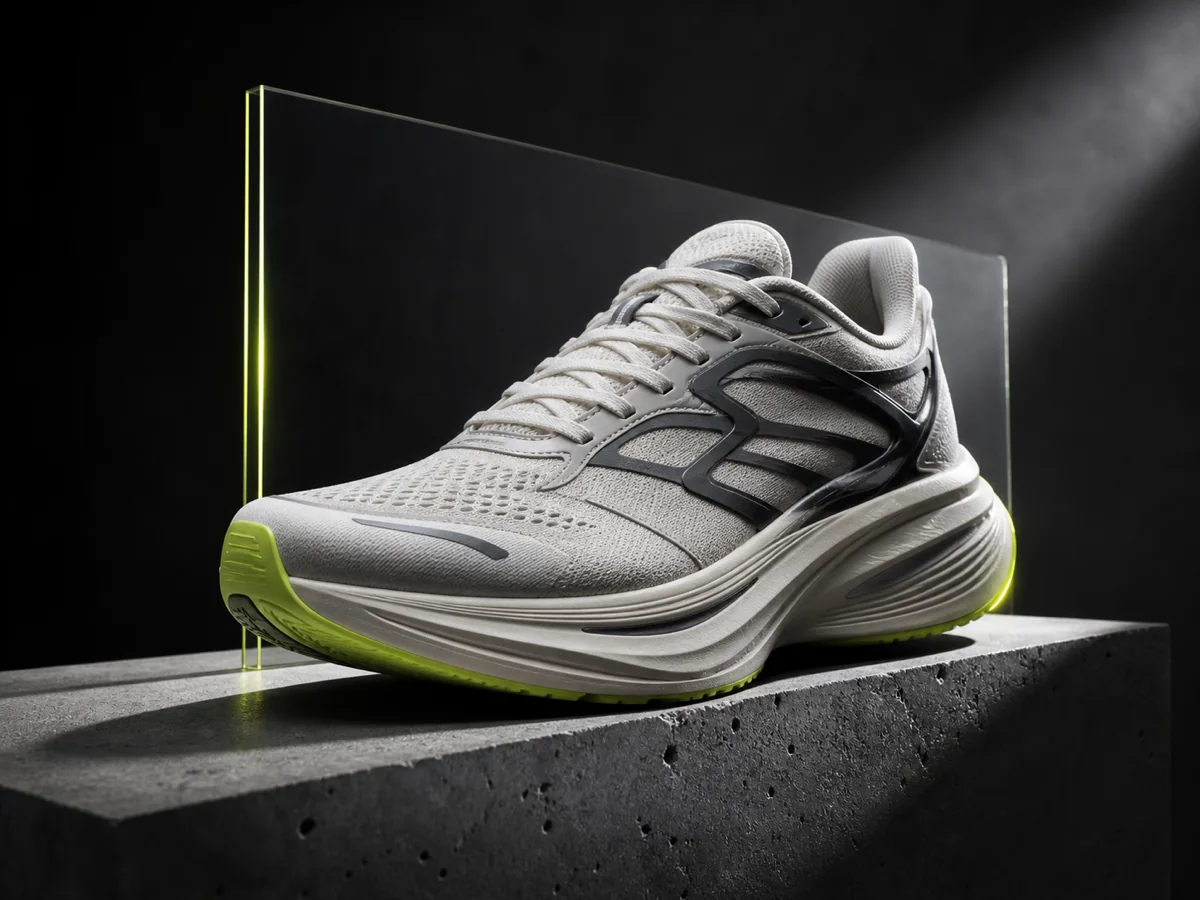
Case / 01
Editorial product campaigns
Stage packaging, materials, props, lighting, and camera direction in one coherent product image built for launch pages and ads.
Turn a written brief or reference image into polished campaign art, product scenes, portraits, and visual concepts. Start in the interactive Muse Image workspace below.
Ready to start creating?
Select a mode on the left, upload images or enter descriptions, and let AI create amazing visuals for you
Generations use site credits. Review every output before publishing or using it commercially.
Muse Image examples
These cases show the kinds of business-ready images a clear Muse Image prompt can produce.
Output studies / 03
Stage packaging, materials, props, lighting, and camera direction in one coherent product image built for launch pages and ads.
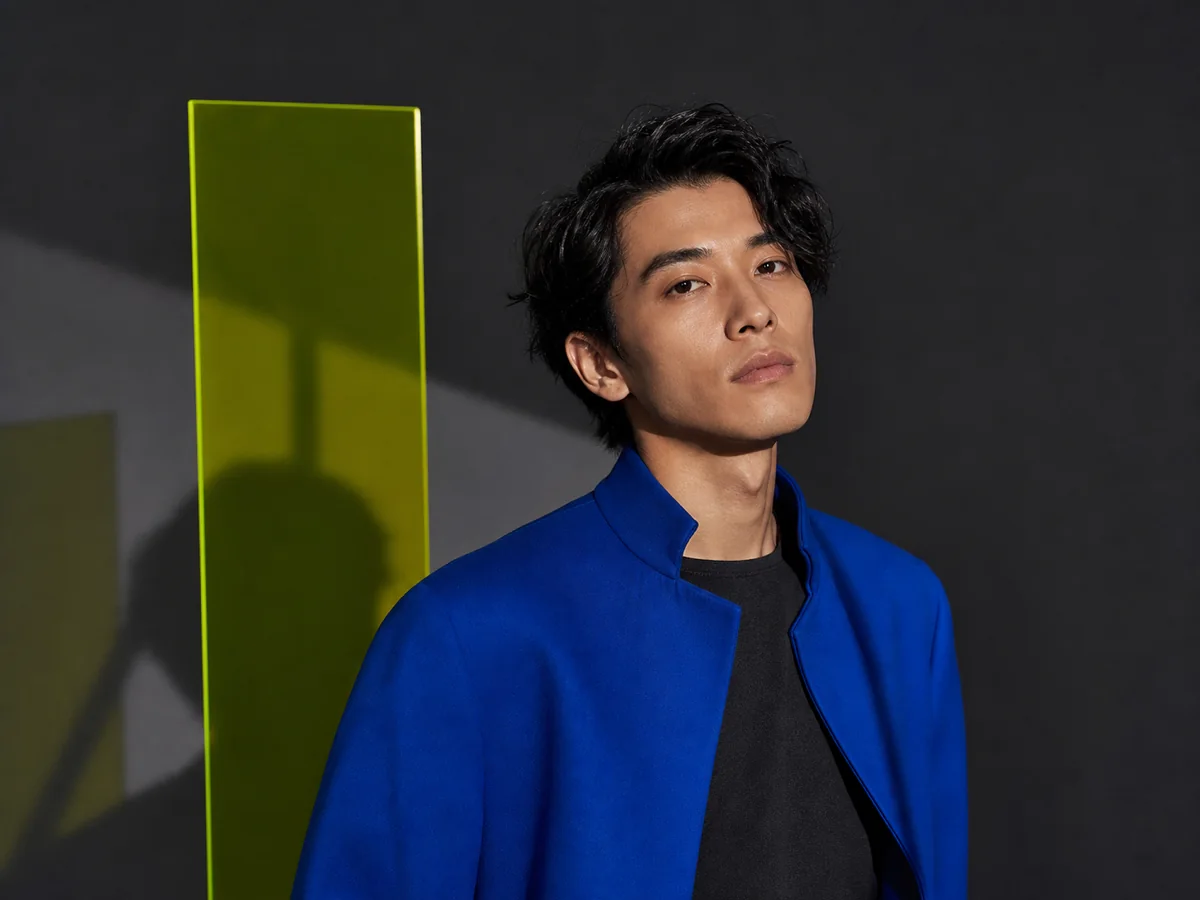
Build a distinctive campaign character and carry the same wardrobe, mood, and art direction across social formats.
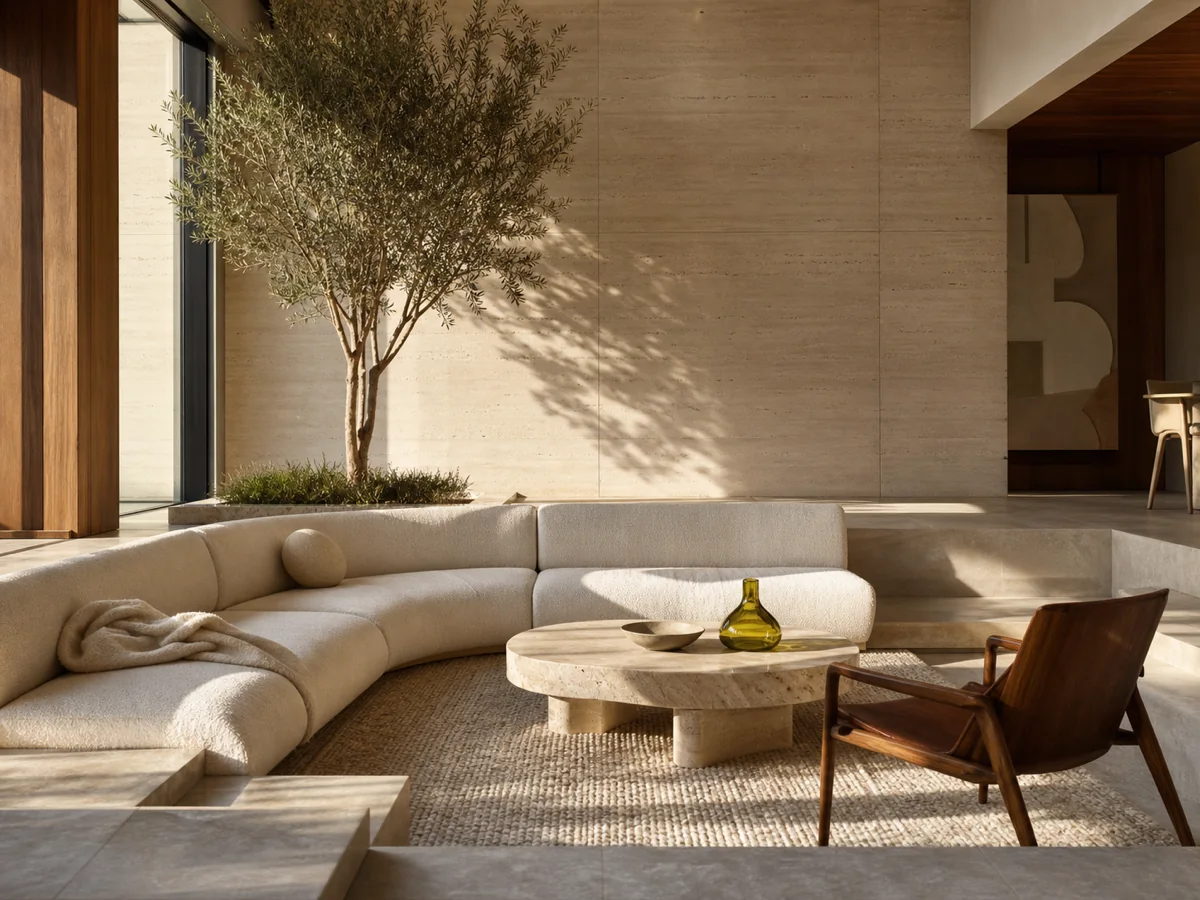
Explore interior layouts, furniture direction, materials, and atmosphere before committing to a physical shoot or renovation.
What is Muse Image?
Muse Image is Meta Superintelligence Labs’ first image generation model. Meta introduced it in July 2026 as the image system inside Meta AI, with creative experiences also appearing across Instagram and WhatsApp in supported regions.
The important shift is its workflow. Muse Image is designed to think through a request before rendering, use current context when needed, combine multiple visual references, and continue refining an image through conversation. That makes it useful for briefs with several constraints, not only one-line art prompts.
Its public feature set covers prompt-to-image generation, natural-language photo editing, sketch or annotation-led changes, legible text inside graphics, reference composition, and social-ready exports. Availability varies by product and region, so this page focuses on the creative workflow rather than promising every Meta app feature in this browser.
Source note: capability descriptions are independently summarized from Meta’s July 2026 announcement and current product information.
Core capabilities
The model is most useful when a visual job needs planning, revision, and context rather than a single decorative render.
Describe subject, setting, action, materials, camera, lighting, typography, and layout together. A structured brief gives the model clear priorities to resolve.
Start from a photo and request a targeted change such as a cleaner background, different material, new prop, revised wardrobe, or alternate lighting direction.
References can communicate identity, product shape, styling, environment, or mood more precisely than text alone. Use only images you have permission to use.
Muse Image is positioned for legible labels, infographics, guides, and designed compositions. Keep required copy short and quote exact wording in the prompt.
In supported Meta experiences, marks and annotations can identify the area to change. The same principle works here: name the target region and state what must remain untouched.
Treat the first output as a draft. Refine one variable at a time, such as framing, material, contrast, expression, or prop placement, to preserve what already works.
How to use Muse Image
Good image generation looks less like a lottery when the brief separates intent, visual facts, constraints, and revision.
Use Text to Image for a new scene. Switch to Image Edit when identity, composition, product geometry, or an existing photograph needs to stay recognizable.
Lead with the main subject and commercial goal. Then add environment, composition, camera, lighting, palette, material, and any exact text in priority order.
Pick the aspect ratio before generating: square for product grids, portrait for posts, 9:16 for stories, or widescreen for banners and presentation covers.
Check hands, faces, product details, claims, logos, spelling, and unwanted artifacts. Revise the smallest failing part instead of rewriting the entire prompt.
Muse Image prompt guide
A reliable Muse Image prompt says what the asset is for, what viewers should notice first, and which details cannot drift.
Prompt formula
[deliverable] + [main subject] + [action or arrangement] + [environment] + [camera and composition] + [lighting and palette] + [materials and details] + [constraints]
01 / PRODUCT
Name the product geometry, surface finish, hero angle, supporting props, background material, and desired ad mood.
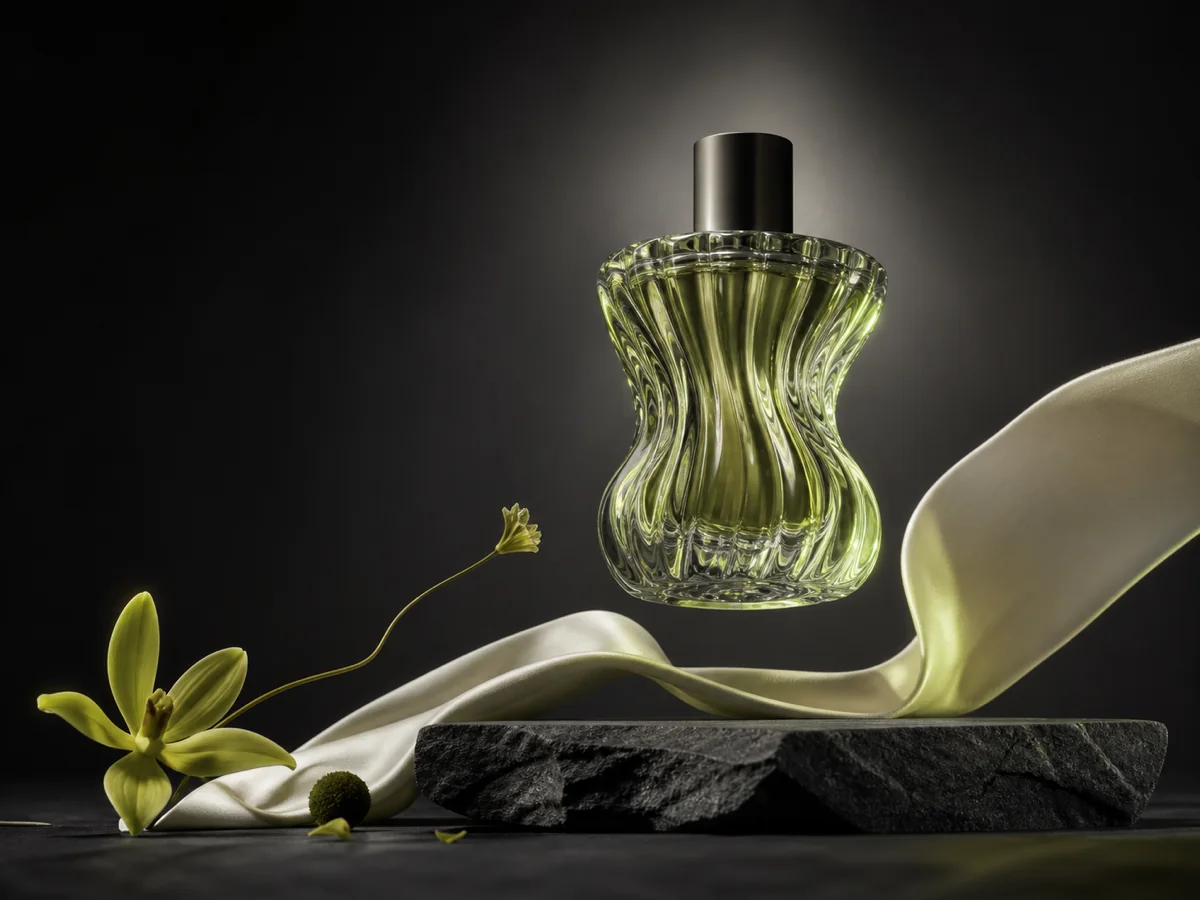
Premium ecommerce hero of a translucent amber perfume bottle on wet black stone, three-quarter angle, restrained botanical props, soft lime rim light, realistic glass caustics, no logo, no readable text.
02 / PORTRAIT
Define subject, wardrobe, expression, lens character, crop, light source, texture, and the publication mood.
Editorial waist-up portrait of a ceramic artist in a charcoal studio coat, calm direct gaze, 85mm lens, window light from camera left, subtle film grain, graphite and moss palette, natural skin texture.
03 / DESIGN
Keep the copy short, quote it exactly, explain placement, and forbid extra wording so typography remains a controlled part of the design.
Minimal event poster with a sculptural chrome flower centered on deep charcoal. Render only “FORM / 26” exactly in the upper left. Swiss grid, acid-lime rule lines, no extra words, no logos.
04 / EDIT
Identify the change and the protected areas. State that perspective, identity, product shape, framing, and untouched regions must remain stable.
Replace only the plain wall with a warm limewash studio wall. Preserve the chair, person, face, pose, clothing, crop, lens perspective, floor shadows, and image dimensions exactly.
Practical evaluation
Model claims matter less than whether the output survives the checks required for the actual publishing context.
| Review dimension | What to inspect | Useful pass condition |
|---|---|---|
| Prompt fidelity | Subject count, relationships, actions, spatial order, and requested exclusions | The central brief is visible without explaining the prompt to another person. |
| Edit control | Whether protected faces, products, framing, and untouched regions remain stable | The requested change is clear and collateral changes are small enough to accept. |
| Text quality | Spelling, punctuation, line breaks, hierarchy, and extra invented wording | Every required word is exact at the final display size. |
| Reference fidelity | Identity, silhouette, material, styling, and details supplied by references | Important reference traits survive without looking copied or distorted. |
| Commercial finish | Lighting logic, edge quality, anatomy, materials, depth, and focal hierarchy | The image looks intentional in the target ad, page, post, or deck. |
| Usage safety | Rights, likeness consent, trademarks, misleading claims, and sensitive context | You can document permission and defend how the asset will be used. |
Responsible creation
Image tools can make plausible scenes that never happened. The operator remains responsible for source rights, consent, disclosure, and final accuracy.
Muse Image FAQ
Straight answers about access, prompts, editing, references, text, and commercial review.
Muse Image is the first image generation model announced by Meta Superintelligence Labs. It is designed for text-to-image creation, photo editing, reference composition, legible visual text, and iterative creative workflows inside Meta AI experiences.
Yes. The interactive workspace at the top of this page supports prompt-to-image generation and reference-guided editing with site credits. It is an independent experience and does not claim to be an official Meta product.
Meta had not announced a general public Muse Image developer API at the time this guide was updated in July 2026. Official availability and developer access may change, so verify current Meta documentation before planning an integration.
Start with the deliverable and main subject. Add environment, composition, camera, lighting, palette, material details, exact text, and protected constraints in descending priority. Keep unrelated ideas out of the same prompt.
Muse Image is publicly positioned for natural-language image edits. In this workspace, choose Image Edit, upload an authorized reference, describe the exact change, and state which details must stay unchanged.
Meta highlights legible text, guides, and infographics as a Muse Image capability. Results still need inspection. Use short exact wording, quote the required text, forbid extra words, and verify spelling at the final output size.
Commercial suitability depends on the applicable product terms, your input rights, the content of the output, and local law. Review likeness consent, trademarks, copyright, claims, and platform policies before publication.
Use 1:1 or 4:3 for product grids, 3:4 or 4:5 for editorial posts, 9:16 for stories and reels, and 16:9 for banners, thumbnails, or presentation covers. Choose the destination before generating.
Your next visual starts here
Choose a mode, describe the intended asset, set the destination ratio, and create a first draft you can art-direct.