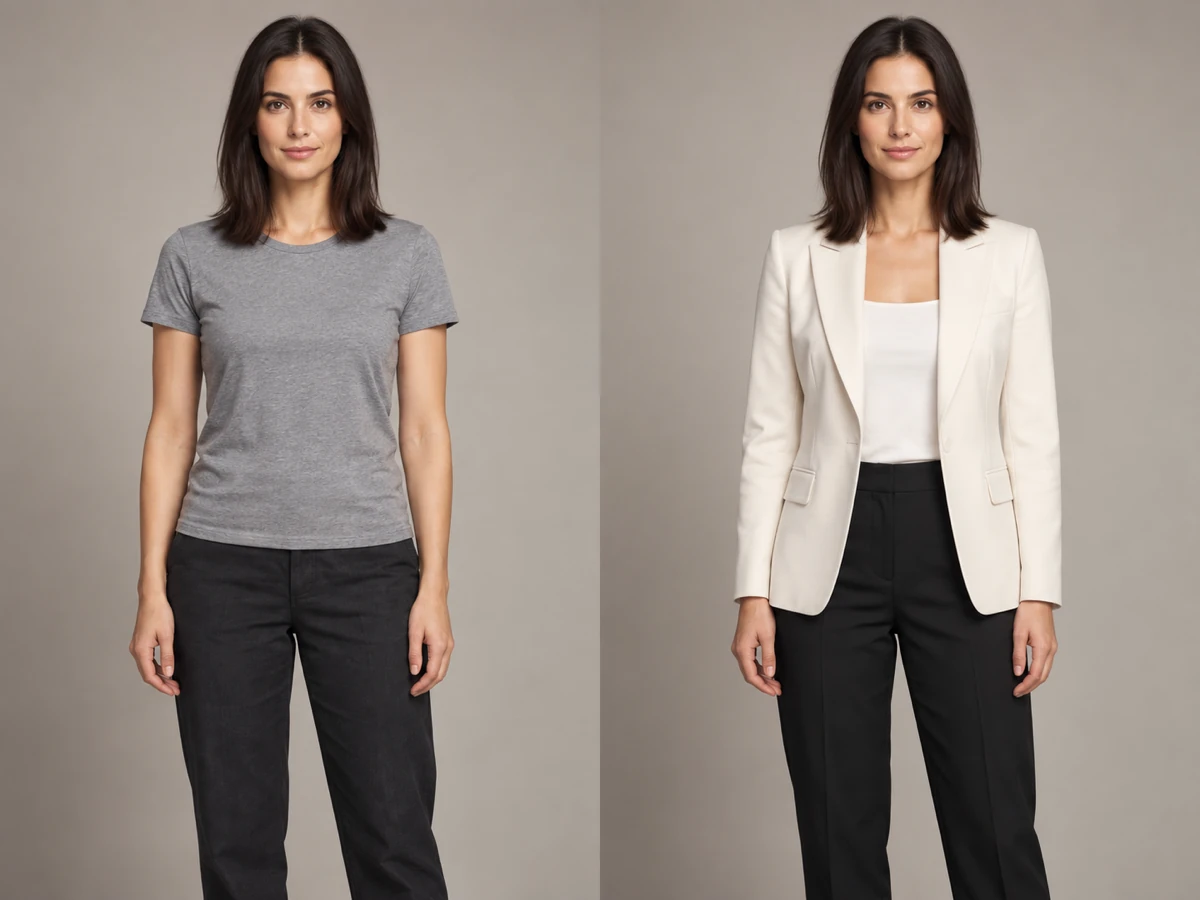
 Editorial / full look
A portrait restyled for a campaign
The whole outfit changes to a tailored, editorial look while the face, pose, hair, and original lighting stay recognisable.
AI Clothes Changer restyles the clothing in a photo while keeping the same person. Upload a portrait, optionally add a garment reference, choose the garment scope, and compare the original with the new outfit before you download.
Awaiting your person photo
Upload the person to restyle, optionally add a garment reference, then describe or pick the outfit direction. The result appears beside the original for a Before / After review.
A useful clothes changer keeps the person and the scene intact and changes only the clothing. These studies show the intended range: a full restyle, a garment transfer, and a single-layer swap.
Editorial / full lookThe whole outfit changes to a tailored, editorial look while the face, pose, hair, and original lighting stay recognisable.
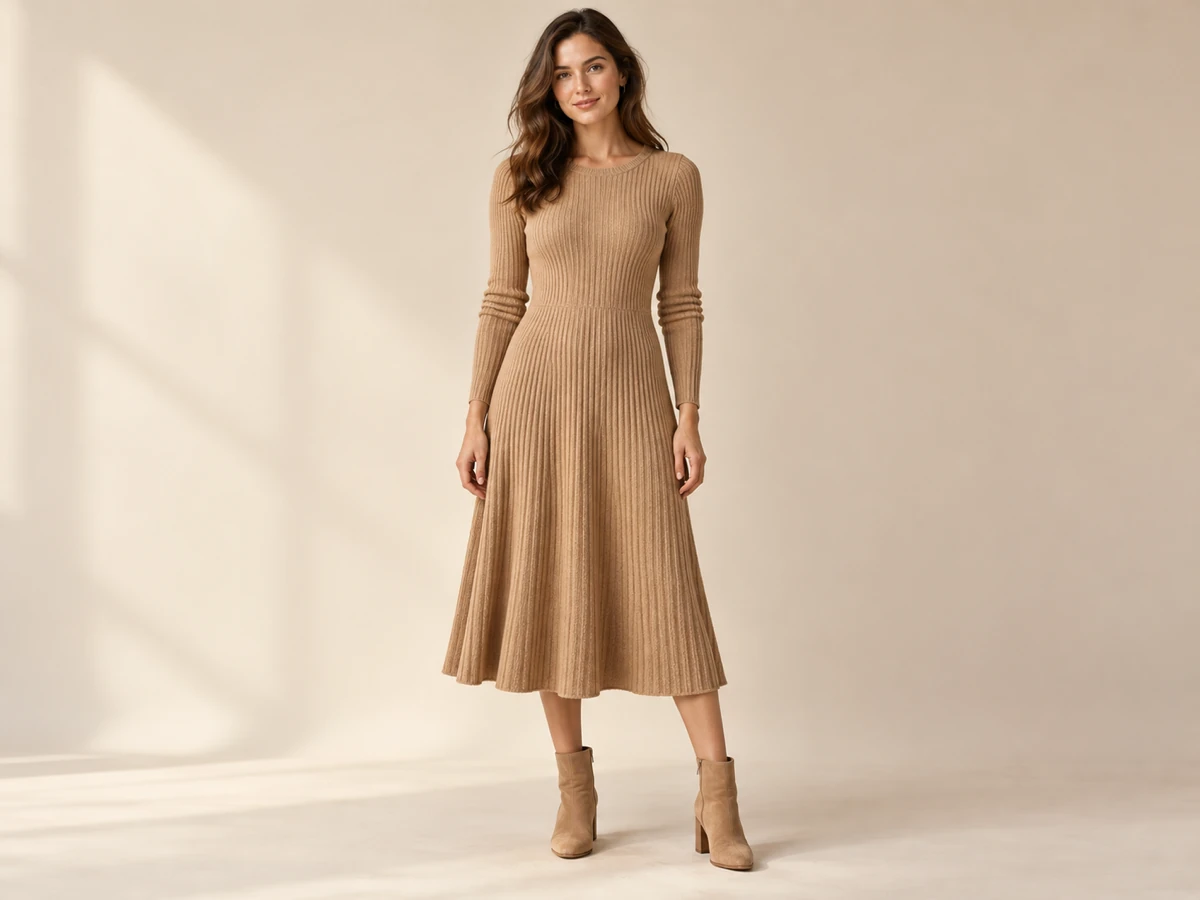 E-commerce / garment transfer
A flat or model-shot garment is transferred onto the person with believable drape, folds, and contact shadows instead of a pasted-on cutout.
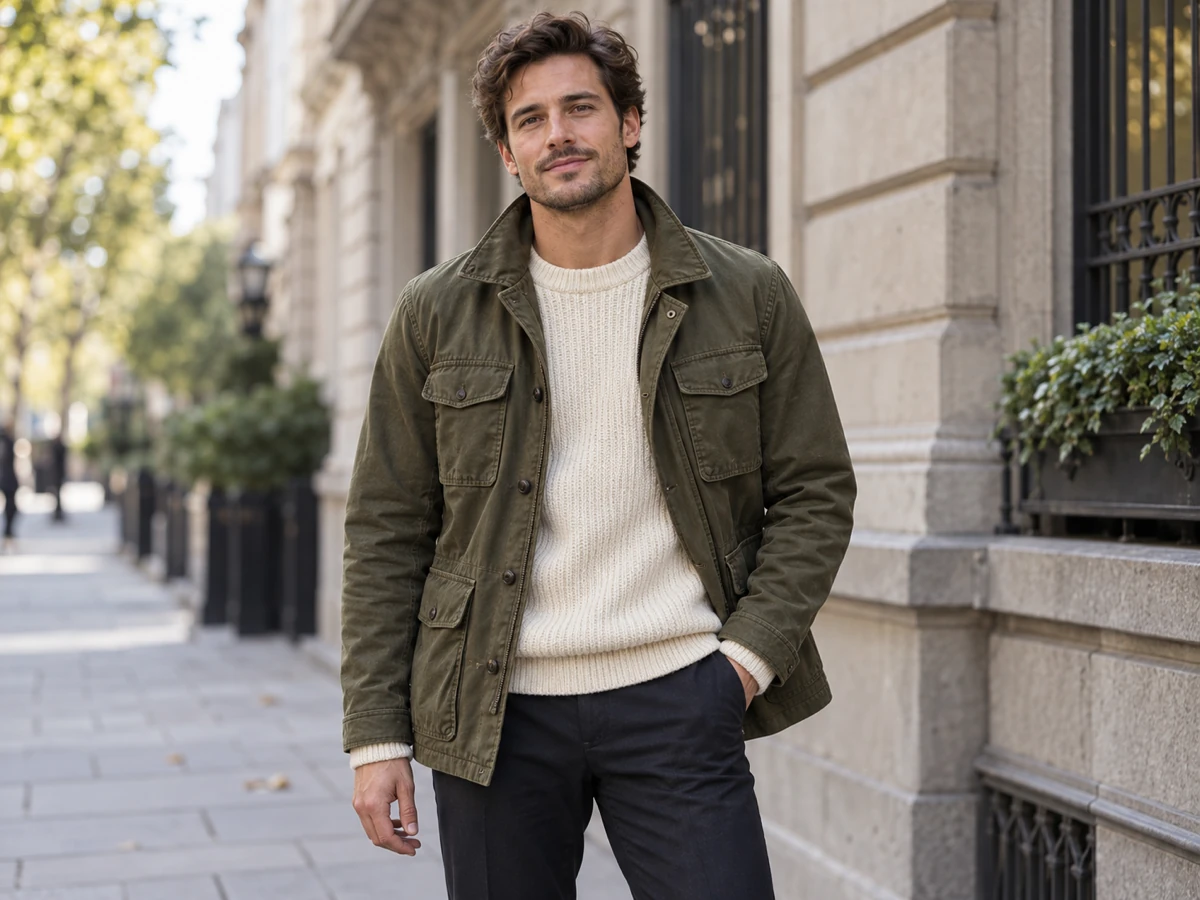 Street / outerwear
A jacket or coat is added over the existing outfit, so you can test layering and seasons without a second photoshoot.
An AI clothes changer is an image-editing tool that replaces the clothing worn by a person in a photo with a different outfit. It edits the garment while trying to preserve the person’s identity, pose, body proportions, background, and lighting, so the result reads as the same photo with a new wardrobe.
The practical value is avoiding a reshoot. Instead of booking a model, studio, and stylist for every variant, you can restyle one approved photo into several outfit directions and keep the versions that fit the brief.
It is not a magic wardrobe: the output is an AI interpretation. Fabric patterns, logos, jewellery, and fine garment construction can shift, so always inspect the Before / After result for faces, hands, text on clothing, and product details before publishing or selling the image.
The scope selector is a real generation setting, not a label. It tells the model which part of the existing outfit may change and which parts must stay untouched.
Replace the complete look from top to bottom for a full restyle, a themed shoot, or a complete wardrobe change.
Best for campaign variants and full transformations.
Change just the upper-body garment such as a shirt, sweater, hoodie, or blouse, keeping the existing bottoms and footwear.
Best for testing tops, prints, and colourways.
Change only the lower-body garment such as trousers, jeans, a skirt, or shorts, keeping the existing top and shoes.
Best for fit, length, and silhouette comparisons.
Add or replace a jacket, blazer, or coat worn over the existing outfit, useful for season and layering tests.
Best for outerwear launches and seasonal looks.
The page keeps the flow short enough for a first attempt while exposing the review step that stops a good-looking image from hiding a real mistake.
Add a clear JPG, PNG, or WebP portrait as the first image. If you already have the exact garment, add it as the optional second image so the model can copy it.
Confirm the first thumbnail is the person you intend to restyle.
Type the outfit you want or choose a prompt example, then select whole outfit, top only, bottom only, or add outerwear. The scope is sent with the generation request.
Match the scope to the change you actually want to review.
Drag the Before / After divider across the face, hands, hairline, collar, cuffs, waist, and background. Download only when the person and the garment both hold up.
Keep the original file as the reference for any later edit or approval step.
The comparison below describes the public workflow each option presents, not a benchmark of hidden model quality. The useful distinction is how much control you get over what changes and how easily you can inspect the result before using it.
| Criterion | Nano Banana Pro | General image AI | Virtual try-on apps |
|---|---|---|---|
| Clothing control | Explicit garment scope: whole outfit, top only, bottom only, or add outerwear | Usually a free-text edit request, so the changed area depends on wording | Typically focused on a single garment swap rather than a chosen scope |
| Reference handling | Person photo plus an optional garment reference in the same request | Often one image at a time, so garment references need extra steps | Accepts a garment, but usually on a fixed model or template |
| Review before export | Built-in Before / After divider keeps the original beside the result | Preview depends on the chat or editor surface | Preview and download inside a locked product flow |
| Scene and identity | Prompt preserves likeness, pose, background, framing, and lighting | Result depends on how carefully the prompt is written each time | Person is frequently replaced or normalised by the template |
| Best fit | Teams and creators who want a controlled, inspectable outfit change | One-off experiments where repeatable clothing control is less important | Shoppers who only need to preview a single product on a model |
Choose Nano Banana Pro when the deliverable is the restyled photo itself and you want to choose what changes, keep the person intact, and compare the result with the source before exporting. For every tool, check faces, hands, garment text, and logos before commercial use.
Clear expectations make the first outfit change more useful and the review step faster.
The request explicitly asks the model to preserve the person’s likeness, facial features, expression, skin tone, hairstyle, body proportions, and pose, and to change only the clothing. Because the output is AI-generated, compare the face and hands with the original before relying on the result.
Yes. Upload the person as the first image and the garment as the optional second image. The tool treats the first image as the person and the remaining image as the garment or outfit reference, then fits the clothing to the existing body geometry.
Garment scope tells the model which part of the outfit may change. Whole outfit restyles everything, top only and bottom only isolate one layer, and add outerwear inserts a jacket, blazer, or coat over the existing look.
The prompt asks the model to keep the original background, framing, and camera angle and to match the original lighting, shadows, perspective, and colour temperature so the new outfit integrates photorealistically.
The page shows the cost before you generate: 40 credits at 1K, 70 at 2K, and 110 at 4K. Uploading images and adjusting settings do not consume generation credits; credits are reserved when the authenticated generation request is accepted.
Review the current Nano Banana Pro Terms of Service and make sure you have the rights to the source photo and any garment reference. Always inspect the output for accidental text, logos, or likeness issues before publishing or selling it.
Start with the portrait that already works, choose what may change, and let the Before / After stage decide whether the new look is ready to keep.