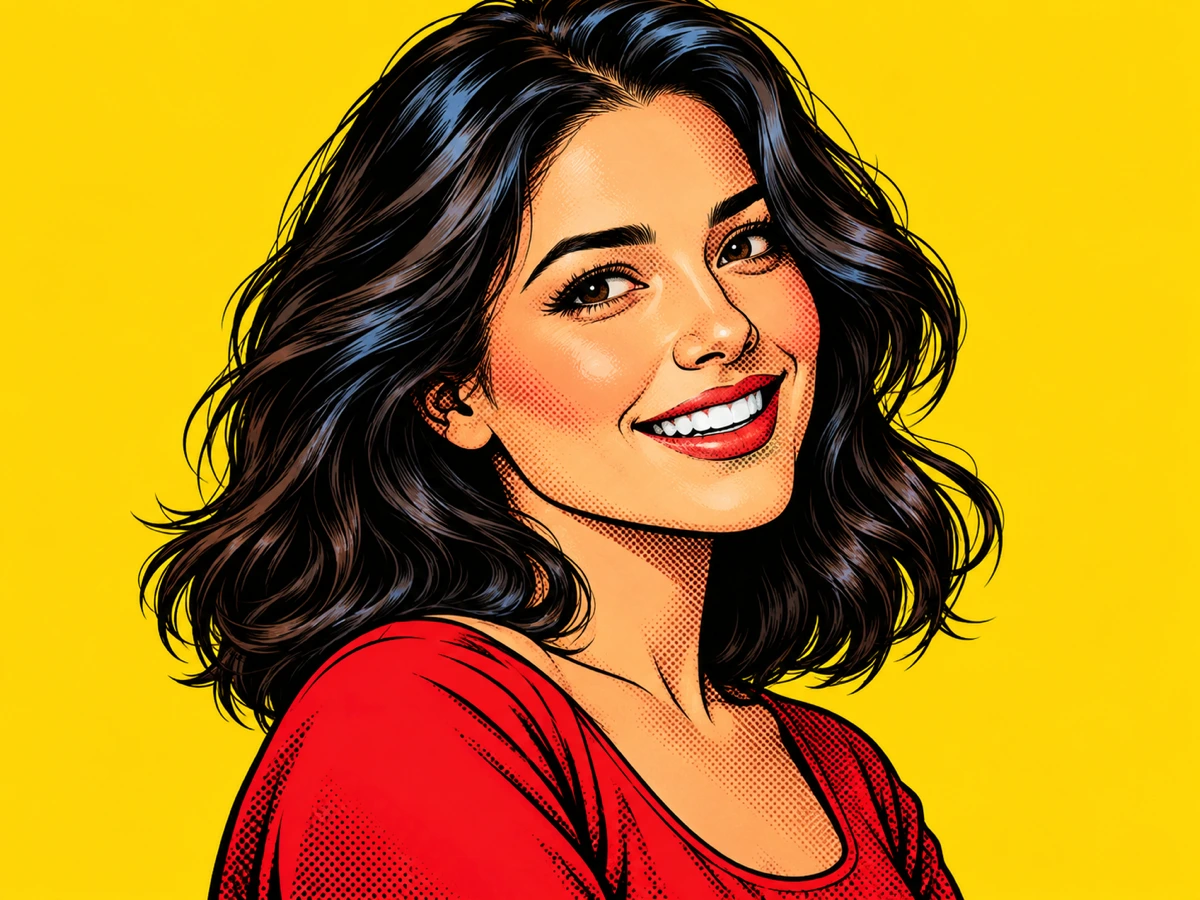
 Portrait / comic
A portrait inked as a comic panel
Comic treatment keeps the facial structure, hair shape, and expression readable while replacing photographic skin and light with heavy outlines, saturated colour, and halftone shadow.
Awaiting your source photo
Upload one clear image, choose a cartoon drawing style, and the generated cartoon will appear here with a draggable Before / After review.
Photo to Cartoon turns one uploaded photo into a comic-book panel, a rounded 3D toon, or a clean flat vector-style illustration. Choose the cartoon language, keep the original beside the result, and download only after you have checked the face, outline, and details that matter.
A cartoon converter is most useful when the drawing language follows the subject. These studies show the intended decision: keep the person, pet, or place recognisable first, then choose the cartoon treatment that serves it.
Portrait / comicComic treatment keeps the facial structure, hair shape, and expression readable while replacing photographic skin and light with heavy outlines, saturated colour, and halftone shadow.
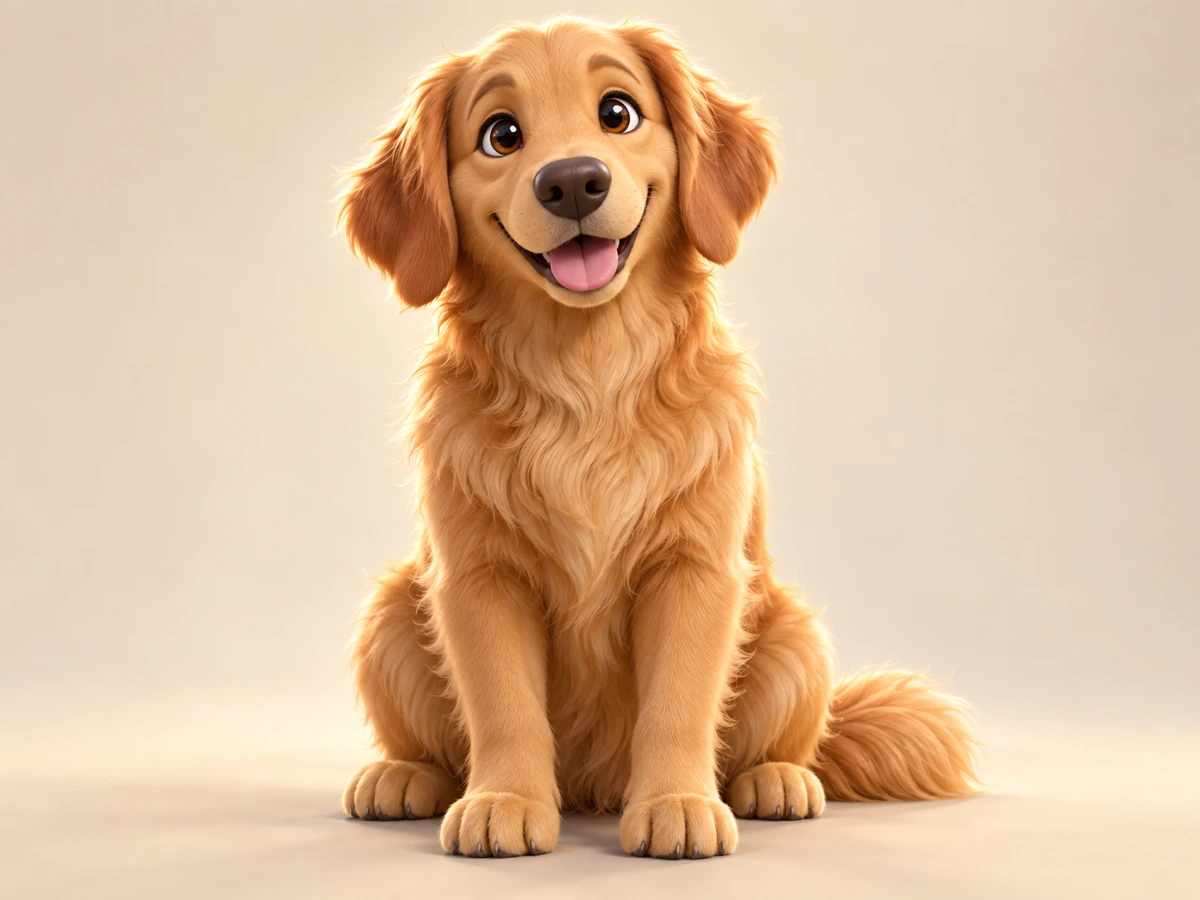 Pet / 3D toon
Rounded 3D toon shading suits fur, bright eyes, and soft silhouettes because sculpted forms and warm highlights keep the animal friendly instead of flattening it.
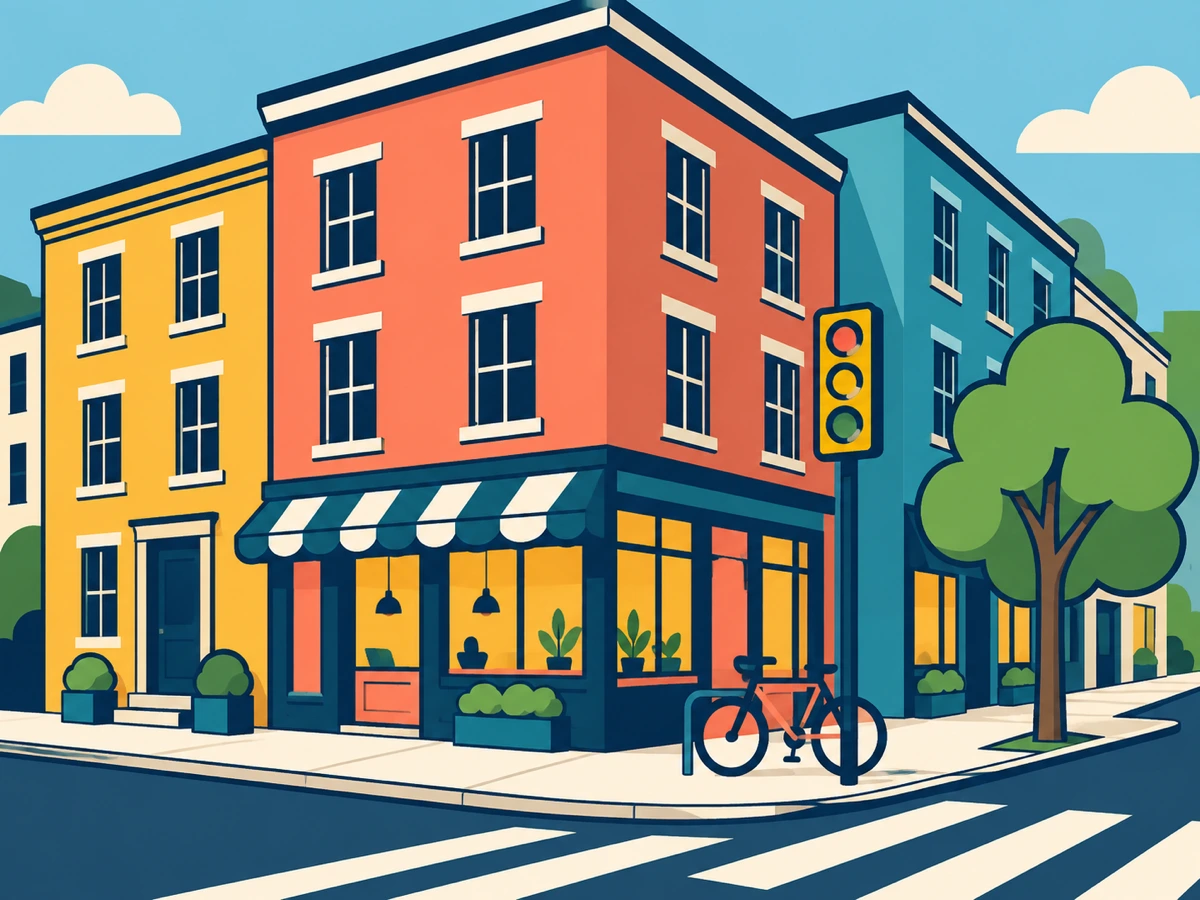 Street / vector
Flat vector treatment reduces perspective, signage, and repeating geometry to uniform outlines and a limited palette for a clean poster-style illustration. The download is a 1K image, not an editable SVG.
Photo to cartoon conversion restyles a photograph as a cartoon illustration by reinterpreting its lines, colours, and shading as comic ink, rounded 3D toon, or flat vector artwork. It is not a colour filter: an image model rebuilds the scene, so faces, hands, text, logos, and exact geometry should always be checked against the original before you rely on the result.
The practical goal is controlled restyling. A useful cartoon keeps the same person, pet, or place, preserves the composition, and changes the drawing language without adding characters or objects. That is why this page keeps the source photo in the same review stage as the generated cartoon.
Start with a well-lit image and a clear subject. Portraits need visible eyes, hair, and facial planes; pets need a readable silhouette and fur direction; buildings and street shots need straight edges and strong perspective. The style choice changes the drawing; it does not repair an unclear or heavily cropped source.
The style selector is a real generation setting, not a decorative label. Pick the treatment that matches how you want the subject to read after conversion.
Heavy ink outlines, saturated primary colour, halftone dot shading, and panel-ready graphic contrast for a printed comic-book feel.
Best for portraits, action shots, and high-energy subjects.
Rounded sculpted forms, glossy shading, large expressive eyes, and warm cinematic lighting for an animated-film character look.
Best for pets, children, mascots, and friendly brands.
Uniform thick outlines, minimal cel shading, geometric shapes, and a bright limited palette for a clean vector-style illustration. The result is a 1K image, not an editable SVG file.
Best for posters, mascots, and flat graphic artwork.
The page keeps the workflow short enough for a first attempt while exposing the review step that stops a charming result from hiding an important mistake.
Add a JPG, PNG, or WebP image. Use one subject with enough light and resolution for the face, fur, or architecture to be inspected after conversion.
Confirm the thumbnail is the source you intended to restyle.
Select comic for printed ink and halftone, 3D toon for a rounded animated-film character, or vector for a clean vector-style illustration. The chosen treatment is sent with the generation request.
Choose the drawing language that supports the subject, not just the strongest contrast.
Drag the Before / After divider across faces, hands, text, logos, repeating patterns, and hard edges. Download only when the cartoon preserves the details you need.
Keep the original file as the reference for any later editing or print work.
The comparison below describes the public workflow each product presents, not a benchmark of hidden model quality. The useful distinction is where the decision and inspection happen: this page puts style selection and Before / After review in the same focused tool.
| Criterion | Nano Banana Pro | Fotor | BeFunky |
|---|---|---|---|
| Primary workflow | Upload one photo → choose comic, 3D toon, or vector → compare → download | Photo-to-cartoon effect inside a broad browser editing suite | Cartoonizer effect inside a general online photo editor and collage tool |
| Style decision | Three explicit cartoon directions exposed before generation, each with a written description | Cartoon and art effects presented across a wider effects library | Several cartoonizer presets and effect controls inside a general editor |
| Review before export | Built-in Before / After divider keeps the original photo and the cartoon together | Preview and download inside the converter workflow | Preview and save inside the editor, with account prompts to export |
| Credit transparency | Shows 15 credits per 1K cartoon before you generate; uploads and style changes do not consume credits | Credits and limits depend on the broader subscription plan | Free preview with paid or account-gated exports |
| Best fit | Users who want one clear cartoon with an explicit style choice and a real check step | Users who also want to continue into a larger browser editing suite | Users who want cartoon effects alongside cropping, collage, and retouching |
Choose Nano Banana Pro when the cartoon itself is the deliverable and you want the style choice, source comparison, and download decision in one compact workspace. For every tool, inspect faces, hands, text, logos, and exact geometry before using the result commercially.
Clear expectations make the first conversion more useful and make the review step faster.
Use a clear JPG, PNG, or WebP image with good lighting and a readable subject. Portraits should show facial features and hair, pets should have a distinct silhouette and visible fur, and street or building shots should have strong edges, perspective, and enough surrounding detail.
Yes. The tool exposes comic, 3D toon, and flat vector as generation choices. Comic gives printed ink and halftone, 3D toon gives a rounded animated-film character, and vector gives clean flat outlines with a limited palette in a vector-style 1K image.
The request asks the image model to preserve the subject identity, face, hair, clothing, silhouette, pose, composition, and the original number of people and animals. Because the cartoon is AI-generated, compare it with the original before relying on a face, logo, text, or exact feature.
Yes. After generation, the result stage keeps the uploaded photo under a draggable Before / After divider so you can inspect the conversion before downloading it.
The dedicated page is set to one 1K output and displays 15 credits per cartoon before you generate. Uploading and selecting a style do not consume generation credits; credits are reserved when the authenticated generation request is accepted.
Review the current Nano Banana Pro Terms of Service and make sure you have the rights to the source photo. Always inspect the output for accidental text, logos, extra faces, or likeness issues before publishing or selling it.
Start with the image that matters, choose the cartoon drawing language, and let the Before / After stage decide whether the result is ready to keep.