Color lab · sampled-shade precision

Recolor Image

Recolor an image online by sampling the exact shade you want to change. The instant preview runs in your browser for free, and one optional AI pass repaints textured objects while keeping the original lighting, reflections, and material detail.

  • JPG · PNG · WebP
  • Eyedropper + palette sampling
  • Free instant local preview
  • 15 credits per AI pass

Source image / 01

Upload a photo, then click the surface whose color you want to change.

AI · 15 credits

Drop a photo to recolor

JPG, PNG, or WebP · 10 MB max · the free preview never leaves your browser

Result / live preview

Your recolored image will appear here

The first screen is the workbench. Upload a photo, click the shade you want to change, and compare the result instantly.

Definition

What does it mean to recolor an image?

To recolor an image is to change the color of a defined part of a photo while leaving everything else in place. A recolor image tool answers three questions separately: which pixels are allowed to change, what new color they become, and how the object keeps its original shading so the edit still looks photographed.

Most disappointing recolors fail on the third question, not the first. A flat fill drops the highlights, contact shadows, and reflections that made the surface believable, so a jacket turns into a sticker and a glass bottle turns into plastic. Keeping each pixel’s own lightness while swapping its hue is what preserves the material.

This page splits the job by cost and precision. Sampling a shade, choosing a tolerance, and previewing the replacement happen locally in your browser and cost nothing, which is enough for flat and mostly-solid surfaces. One optional GPT Image 2.5 pass then handles the harder cases: print, knitwear, brushed metal, glass, and any object whose color varies across the frame.
Practical workflow

How to recolor an image in 3 steps

The sequence is deliberately short. The important decisions are visible in the workbench, and you can review every change before you spend a credit.

  1. 01

    Upload one photo

    Choose a JPG, PNG, or WebP file up to 10 MB. The browser reads the real pixel dimensions before anything is sent, so a file that only pretends to be a supported image is rejected immediately.

    Use a source where the target surface is clearly visible and not hidden behind another object.

  2. 02

    Sample the shade and choose the new color

    Click the eyedropper on the photo to sample the exact pixel you mean, or start from the six shades detected in the image itself. Then pick a target color from the curated swatches or type any hex value.

    If two different objects share the sampled shade, raise the region label with a plain description such as “the left cushion”.

  3. 03

    Preview locally, then refine with AI if you need it

    The free in-browser pass repaints matching pixels instantly, with a 0–100 tolerance slider and a draggable Before / After review. Textured surfaces can then be refined by a single GPT Image 2.5 task that costs 15 site credits.

    Compare the result against the original at full size and confirm the untouched areas really are untouched.

Method selection

Replace color, hue shift, or AI recolor?

Two production passes ship on this page, and one common shortcut deliberately does not. Choose the method that matches the surface in front of you instead of pushing one method harder.

MethodHow it worksWhere it winsWhere it failsCost on this page
Browser replace colorEvery pixel within the tolerance of the sampled shade takes the new hue while keeping its own lightnessFlat walls, painted metal, solid fabric, and graphic shapes change immediately and exactlyGradients, print, and soft shadows may keep a leftover rim of the old colorFree · no credits
Whole-image hue shiftA global rotation of every hue in the frame, applied to the entire photo at onceFast when the real goal is “shift all the colors together”, such as a quick mood changeUnrelated colors drift too and neutral areas turn muddy, which is why this page does not use it for a single-object recolorNot offered on this page
GPT Image 2.5 recolorOne image-to-image pass repaints the described object and rebuilds its shading and textureKnitwear, glass, brushed metal, reflections, and objects whose shade varies across the frameA very vague region description can leave neighbouring objects slightly tinted, which is why the sampled hex and a region label are sent together15 site credits per 1K result

No automatic recolor is a guarantee, and this page does not offer a brush mask. Reflection, translucency, and fabric print deserve a human check at the size the image will actually be used, especially when the result carries a product or a brand color.

Use cases

Pick the shade that answers the buyer’s question

A recolor is a sales and communication tool before it is an editing trick. Each of these jobs changes one color on purpose and protects everything else.

01

Ecommerce colorways

Does a shopper need to see the same product shot in another finish before deciding?

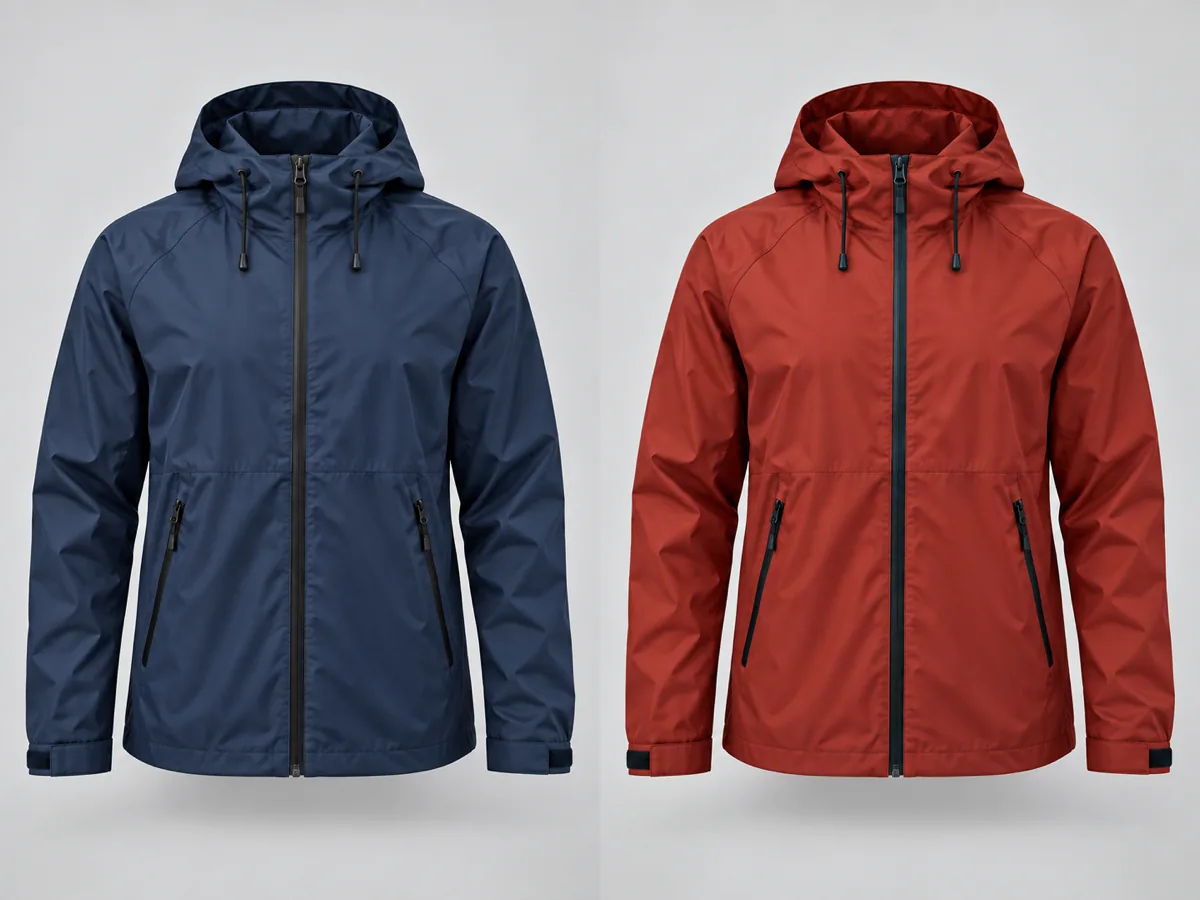
Try this: Sample the garment or product body itself, not a shadow, then compare the recolored version with the original side by side at thumbnail size.

ReviewConfirm that labels, logos, stitching, and packaging text still read exactly as they did in the source.

02

Interiors and furniture

Would a customer commit faster if they could see the sofa, cabinet, or wall in their own photo?

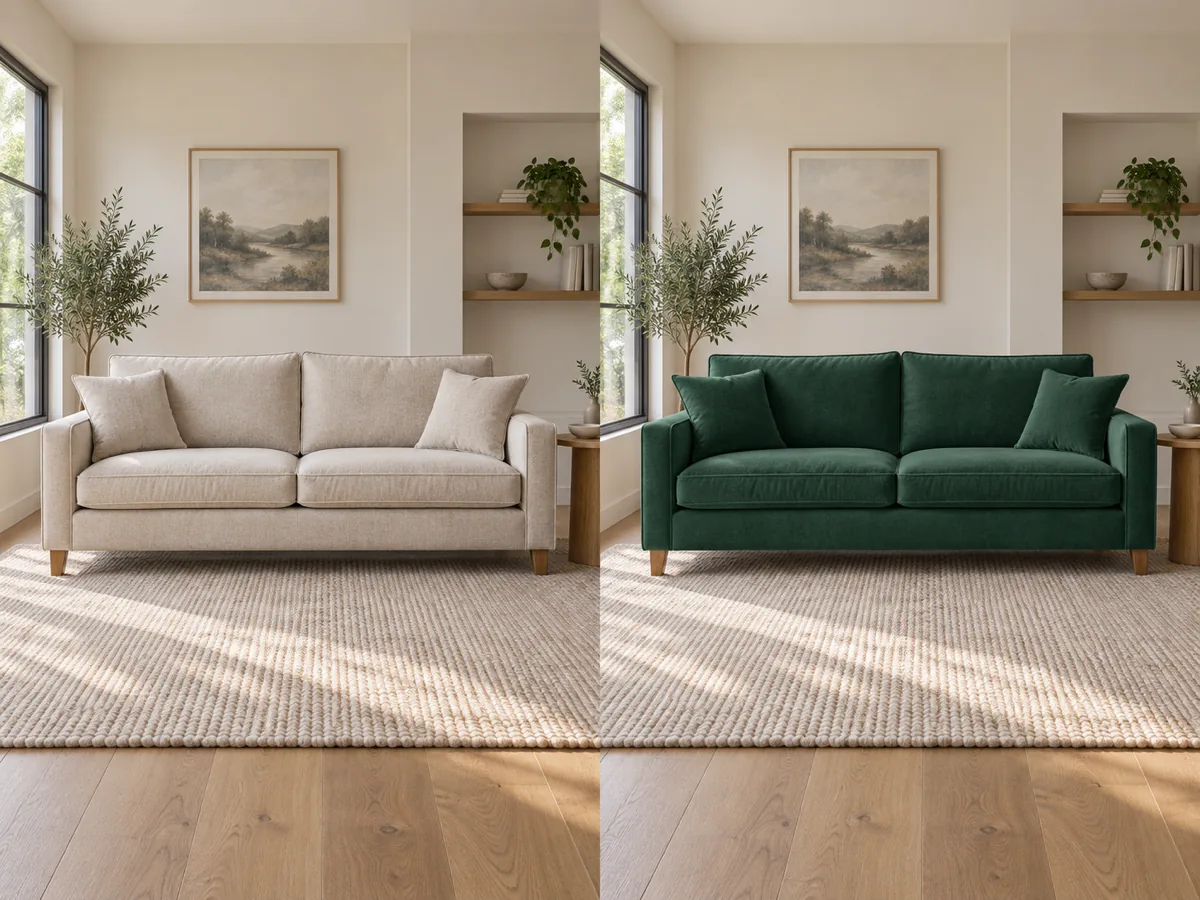
Try this: Keep the room light untouched and move only the upholstery or paint. A moderate tolerance holds the fabric weave while the surrounding trim stays neutral.

ReviewCheck the shadow under the furniture and any reflection in a window or screen before you publish the rendering.

03

Brand and packaging mockups

Does the container need to match a fixed brand standard or a seasonal palette?

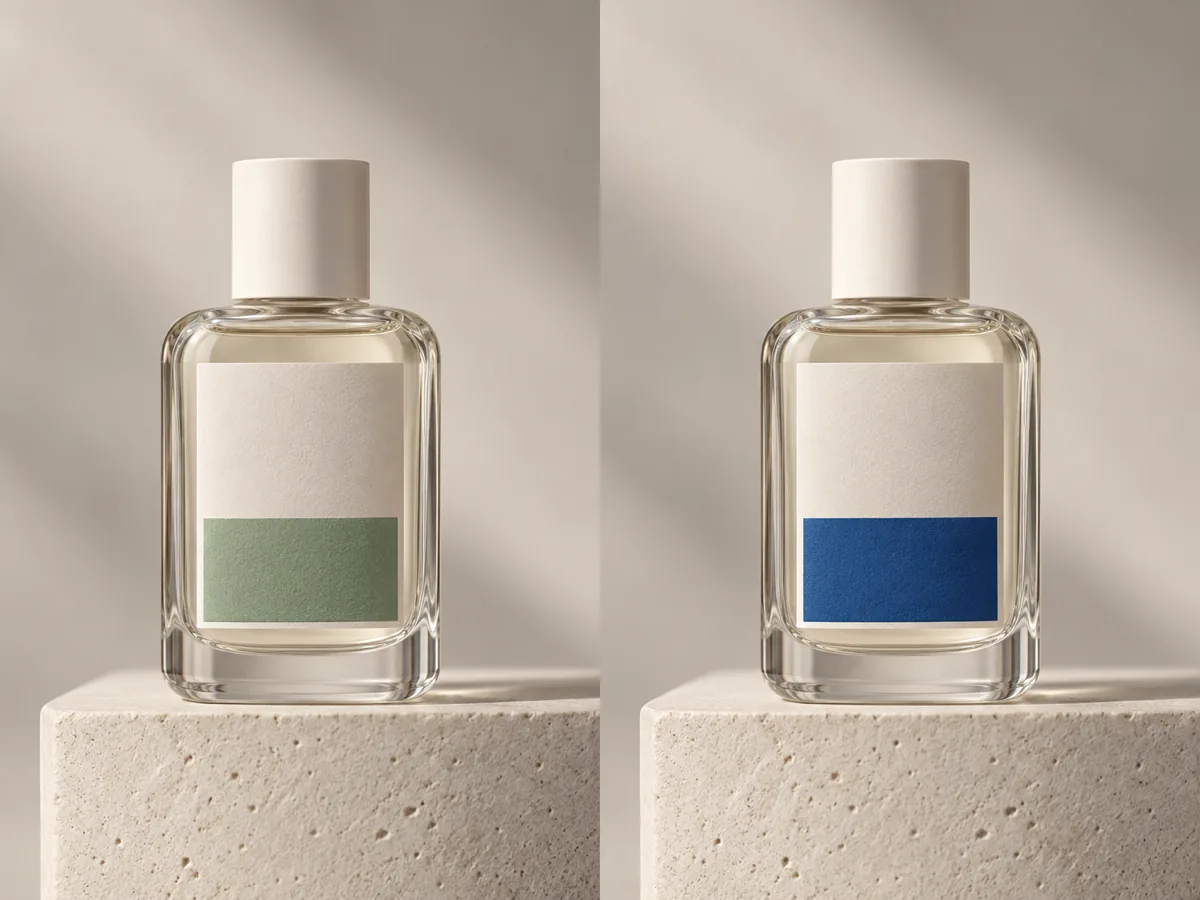
Try this: Type the brand hex value instead of eyeballing a swatch, and use the AI pass when the surface is glass, foil, or a textured label.

ReviewCompare the final hex against the brand standard and verify that the highlight and reflection shapes were not redrawn.

Commercial comparison

Nano Banana Pro vs Photoshop vs Canva

Each of these products can recolor a photo, and they are optimized for different moments. The comparison below focuses on the decision this page makes: how fast you can go from a sampled shade to a reviewable image without installing anything. Competitor names are named for clarity; this page does not link out to them.

Workflow comparison reviewed

Decision pointNano Banana ProPhotoshopCanva
Time to first resultUpload, click the surface to sample its shade, and the recolored preview appears immediately in the browser.Requires an installed desktop application, a layered document, and a selection or adjustment layer workflow.Runs in a browser inside a design project, so a quick one-off edit competes with layout tools you did not need.
Precision when the color variesSend the sampled hex, a region label, and a scope choice to one GPT Image 2.5 pass that rebuilds shading and texture.Very deep, provided you know which masking and blend approach matches the surface in front of you.Convenient for simple flat shapes; complex reflective or printed surfaces usually need a different tool.
Untouched areasThe instant pass only writes to pixels inside the tolerance band, and the AI pass is instructed to change nothing outside the described area.Whatever stays outside your selection stays intact, and the selection is entirely your responsibility.Depends on the selected element and the tool you pick, so results vary between simple and complex photos.
Cost of experimentingSampling, tolerance, swatches, the live preview, and PNG export are free; only the optional AI refine costs credits.Sold as a subscription; the trial period and license terms depend on your current plan.Free tier plus paid plans, where feature and export rules depend on the current plan and account.
Best fit overallA single, reviewable color change on a web page, from a phone or a laptop, without an editing suite.Professional retouching where color is one step inside a larger, tightly controlled pipeline.Design production that already lives inside a template, a deck, or a campaign layout.

Choose Nano Banana Pro when the job is one honest color change and you want to see it before you pay for it. Choose a desktop editor when you need pixel-level control across many layers, or a design suite when the recolor is one step inside a bigger composition.

Operating facts

Formats, limits, credits, and data flow

These are the boundaries the public workbench actually enforces, not marketing promises about the result of any single edit.

Public input limits

JPGPNGWebP
  • Upload one JPG, PNG, or WebP image up to 10 MB.
  • Target swatches ship with 12 curated colors; any hex value can also be typed or sampled from the photo.
  • The tolerance slider runs from 0 to 100 and only affects the free local pass.
  • The optional region label is limited to 60 characters so the AI instruction stays unambiguous.
  • The instant recolor is exported as a PNG built from the canvas pixels, not a screenshot of the page.
  • The AI refine returns one 1K image and costs 15 site credits.

The instant pass is free. One optional AI refine costs 15 site credits and the region label is capped at 60 characters.

What happens to an uploaded image

The browser decodes your file locally to measure it and to build the sampled palette. Choosing a shade, moving the tolerance, switching swatches, and exporting the instant PNG all happen on your device and never leave the page.

The AI refine is the only step that uploads anything. The server checks the real image container, size, dimensions, and moderation result, stores the file under your signed-in account, and verifies that the stored reference belongs to you before the task starts. Task state, credits, and refund handling follow the existing workbench flow.

Credits are reserved and consumed by the server for the AI task only. Sampling colors, changing the target swatch, adjusting tolerance, and downloading the instant PNG do not create a task.

Common questions

Recolor Image FAQ

These answers separate what the page implements from editorial advice about choosing and reviewing a color change.

Can I recolor an image online for free?+

Yes. Uploading, sampling the shade, choosing a target color, adjusting tolerance, viewing the Before / After preview, and downloading the instant PNG all run in your browser and cost nothing. Only the optional GPT Image 2.5 refine starts a paid task.

Can I recolor an image without AI?+

Yes. The free local pass is a deterministic pixel replacement: every pixel inside the 0–100 tolerance band takes the new hue while keeping its own lightness. Flat paint, solid fabric, and graphic shapes usually need nothing else.

How does the tool know which part of the photo to change?+

Click the eyedropper on the surface you mean and the exact pixel color is sampled. The tolerance slider then decides how far a neighbouring pixel may drift and still be included, and an optional region label such as “the left cushion” is added to the AI instruction for extra clarity.

Will the object keep its shadows, highlights, and texture?+

The local pass keeps each pixel’s own lightness, so folds, gradients, and contact shadows survive. The AI pass is explicitly instructed to preserve shading, highlights, reflections, and material finish, and to change nothing outside the described area.

Why did a leftover ring of the old color appear?+

A color that sits just outside the tolerance band is left alone, which is common on soft shadows, gradients, and anti-aliased edges. Raise the tolerance for a wider match, lower it when two objects share a similar shade, or use the AI refine for surfaces whose color varies across the frame.
How many credits does the AI recolor cost, and is the download a real image?+

One AI refine costs 15 site credits at 1K and returns a downloadable image file. The instant export is a real PNG encoded from the canvas pixels rather than a screenshot of the interface, and it is written at the loaded image resolution instead of a fixed preview size.

Return to the color lab

Change one color, keep the photograph

Start with a photo you can inspect, sample the shade you actually mean, and preview the swap for free. Reach for the AI pass when the surface is textured, reflective, or printed, and review the result before it ships.

Sampled shade referenceFree local passAI refine / 15 credits